
Imagine your worksheet is full of colored cells, icons, or data bars that no longer make sense, making it difficult to read your data. Instead of deleting your data and starting over, you can remove only the conditional formatting in a few clicks and keep your worksheet clean.
Go to Home → Conditional Formatting → Clear Rules, then choose either Clear Rules from Selected Cells or Clear Rules from Entire Sheet.
This removes conditional formatting while keeping your data, formulas, and tables intact.
Why You May Need to Remove Conditional Formatting in Excel
You may need to clear conditional formatting when:
- Old highlighting no longer reflects current data.
- Multiple rules make the worksheet difficult to read.
- You’re preparing a report that will be shared.
- You imported a workbook with unnecessary formatting.
- Too many rules are slowing down Excel.
How to Remove Conditional Formatting in Excel from Selected Cells
Step 1: Select the Cells with Conditional Formatting
- Highlight the cells where you want to remove conditional formatting.
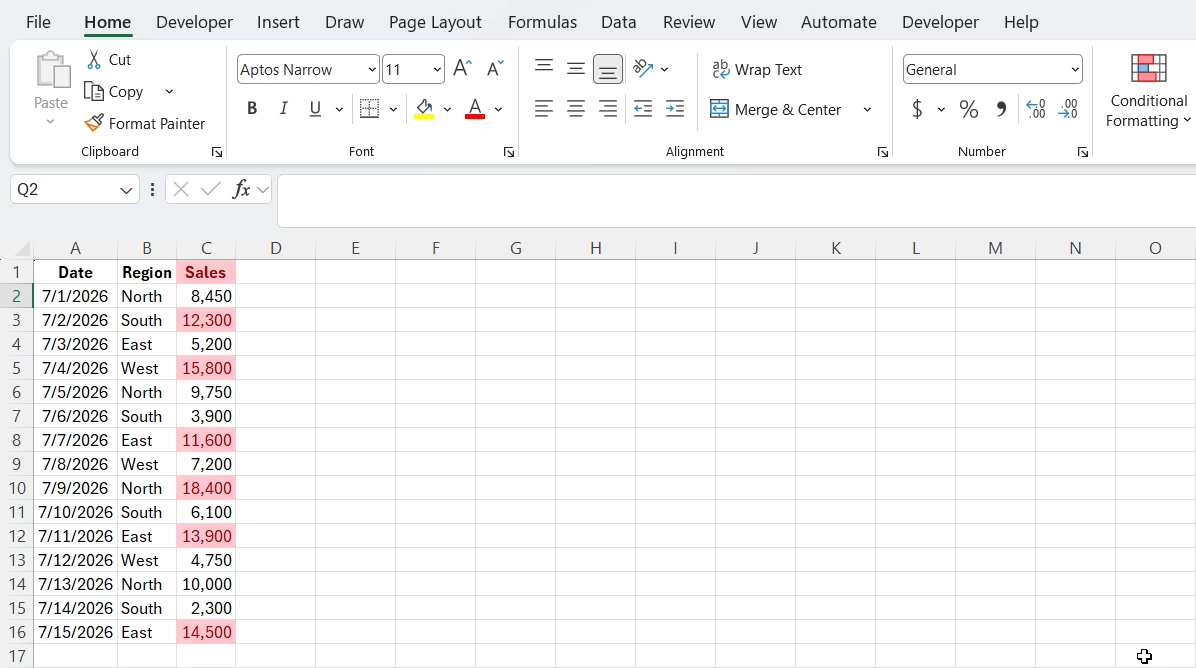
- Common Mistake: Selecting more cells than intended.
Step 2: Open the Conditional Formatting Menu
- Go to: Home → Conditional Formatting

- Common Mistake: Clicking Clear Contents instead of Clear Rules.
Step 3: Clear Conditional Formatting Rules
- Choose: Clear Rules → Clear Rules from Selected Cells
- The selected cells should return to their normal appearance while all values remain intact.
- Common Mistake: Choosing the entire sheet accidentally instead of Selected Cells.
How to Remove Conditional Formatting from an Entire Excel Worksheet
- Open the Worksheet
- Select Home → Conditional Formatting → Clear Rules
- Click Clear Rules from Entire Sheet.
- Common Mistake: This option only removes rules from the current worksheet and not from every worksheet in the workbook.
How to Remove Specific Conditional Formatting Rules in Excel
If you only want to delete one rule:
- Select the affected cells (optional).
- Go to Home → Conditional Formatting → Manage Rules.
- Choose Current Selection or This Worksheet.
- Select the rule.
- Click Delete Rule.
- Click Apply, then OK.
Clear Conditional Formatting Without Deleting Cell Data
Clearing conditional formatting removes only the visual rules that change how cells look. It does not delete or alter the actual data, formulas, tables, charts, or PivotTables in your workbook.
What stays intact after you clear conditional formatting
| Removed | Conditional colors, icons, data bars, and any rule-driven visual effects. |
| Cell Values | Numbers, text, and dates remain unchanged. |
| Formulas | All formulas continue to calculate as before. |
| Tables | Excel Tables and their structured references remain. |
| Charts | Charts that reference the data still reflect the underlying values. |
| PivotTables | Pivot summaries and source connections are preserved. |
How to Check that Only Conditional Formatting Was Removed
After clearing the rules:
- Open Manage Rules: Home → Conditional Formatting → Manage Rules and confirm the unwanted rules are gone.
- Check Values: Scan the range to ensure numbers, text, and dates are still present.
- Verify Formulas: Click a few cells with formulas and confirm the formula bar shows the same formulas and results.
- Compare Totals: Use a quick SUM or AutoSum function or check a status cell to compare totals before and after clearing rules.
- Inspect dependent Objects: Open any charts or PivotTables that use the data to make sure they still update correctly.
Common Problems When Removing Conditional Formatting (and How to Fix Them)
| Problem | Solution |
| Formatting remains | Check if it’s normal cell formatting instead of conditional formatting. |
| Only some formatting disappeared | Remove any additional rules in Manage Rules. |
| If wrong cells were cleared | Press Ctrl + Z and then try again. |
| Rules return after reopening Workbook | Check for workbook protection or copied formatting. |
| Excel feels slow | Delete duplicate or unused rules through Manage Rules. |
Best Practices Before Clearing Conditional Formatting in Excel
Save a backup copy of your workbook
Always create a duplicate file before making changes. This ensures you can restore the original formatting if something goes wrong or if you later realize the rules were useful for historical analysis.
Verify the selected range before clearing rules
Double‑check that you’ve highlighted the correct cells. Accidentally clearing rules from the wrong range can remove important formatting and disrupt reporting consistency.
Remove any individual rules whenever possible
Instead of clearing all rules at once, target specific ones. This approach preserves useful formatting while eliminating only outdated or redundant rules, giving you more control.
Delete duplicate conditional formatting rules
Over time, workbooks often accumulate overlapping or duplicate rules. Removing these reduces clutter, improves performance, and makes rule management easier.
Test important reports after making changes
After clearing or editing rules, review key reports to confirm that the data still displays correctly. This step helps catch issues like missing highlights, incorrect thresholds, or unintended formatting gaps before sharing with stakeholders.
Practical Examples of Removing Conditional Formatting
Removing Conditional Formatting from Monthly Sales Reports
Remove outdated highlighting before presenting updated reports. The old highlights (for example, last month’s top sellers or temporary flags) can mislead readers when you update figures. Removing outdated rules ensures the visual cues reflect the current data and prevents stakeholders from drawing incorrect conclusions.
Cleaning Up Shared Excel Workbooks
Clean imported spreadsheets that contain unnecessary formatting. Sheets contributed by different team members often carry inconsistent or conflicting rules. Cleaning up unnecessary conditional formatting reduces confusion, prevents visual clashes, and improves workbook performance.
Managing Conditional Formatting in Project Tracking Sheets
Project schedules and status trackers often accumulate conditional rules from past projects or different templates. Outdated rules, for example, flags for old milestone dates, can misrepresent current status, cause confusion in team meetings, and hide the real risks that need attention.
Key Takeaways
- Use Home → Conditional Formatting → Clear Rules to remove conditional formatting without affecting your data.
- Use Manage Rules when you need to delete specific rules instead of all formatting.
- Always review your selected range or save a backup before removing formatting from an entire worksheet.