
Imagine you have been given the task of preparing a Pivot Table report for management. Everything looks perfect until you try to group dates by month or year; instead of seeing neatly organized months, Excel throws a frustrating error message: “Cannot group that selection.” Now your report is stuck, the deadline is approaching, and you have no idea which date is causing the problem.
The good news is that in most cases, the issue isn’t Excel itself. It’s usually a hidden date-formatting problem, blank cells, text-based dates, or invalid date values within your data that are causing this issue.
In this guide, I will show you exactly how to find the cause and fix the Excel dates cannot group that selection error quickly.
The “Cannot group that selection” error usually appears when the field you’re trying to group contains blank cells, errors, or values that Excel doesn’t recognize as valid dates.
To resolve such issues, check the source date column for blank cells,
ensure every value is a valid Excel date, convert text-formatted dates
into real dates, remove errors such as #VALUE!,
#N/A, or #REF!, and use a consistent date
format throughout the column. After making these corrections,
refresh the Pivot Table.
Why Excel Shows “Cannot Group That Selection”
When you group dates in a Pivot Table, Excel expects every value in the date field to be a valid date. If Excel finds even one value that is not recognized as a proper date, it cannot create date groups and it displays the error “Cannot group that selection”.
For example, if a column contains 999 valid dates and just one text value or blank cell, Excel may refuse to group the entire field. Before grouping dates by month, quarter, year, week, or day, make sure every record in the source data contains a valid, error-free date value.
How to Fix the “Excel Dates Cannot Group That Selection” Error
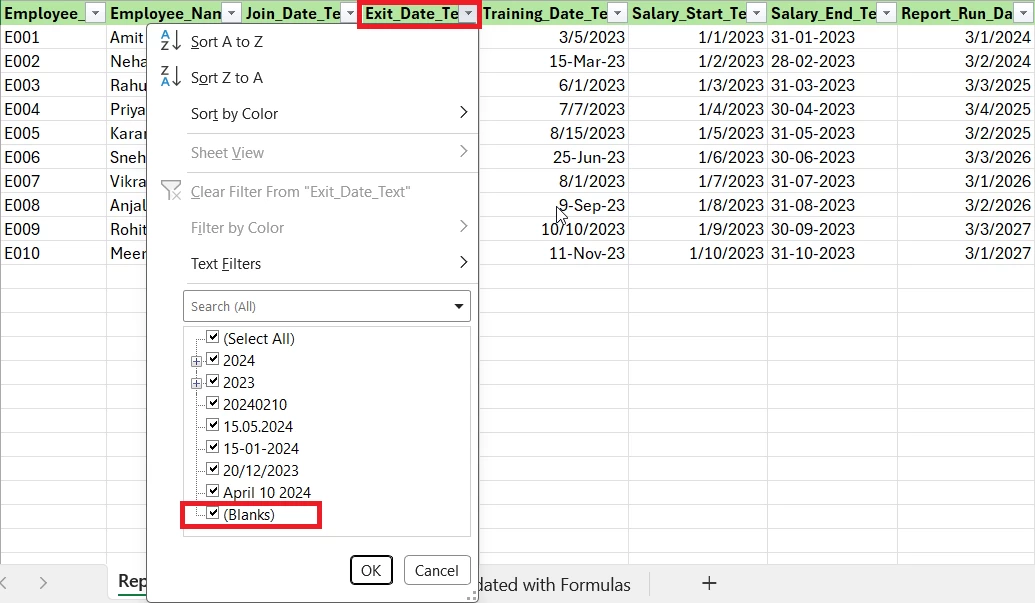
Step 1: Check for Blank Cells in the Date Column
Pivot Tables require valid dates in every cell. A blank cell may look harmless, but it can stop grouping entirely.
What To Do
- Select your date column
- Apply a filter and,
- Look for blank values in the cells
- Fill in missing dates or remove incomplete records from the cells.
Common Mistake
Many users replace blanks with spaces, but Excel still treats spaces as non-date values.
Step 2: Confirm the Values Are Valid Excel Dates
Sometimes values in the cells may look like dates but are actually text strings. They appear identical, but Excel handles them differently. For example: 01/01/2025 (Date), ’01/01/2025 (Text)
What To Do
Use the formula below to check if values in cells are date or Text:
=ISNUMBER(A1)If the result after applying the formula are:
- TRUE = It means the date is valid
- FALSE = If Date is a text or an invalid date value

Common Mistake
Changing the format of cells to “Date” does not convert text into real dates; it only changes the appearance.
Step 3: Convert Text Dates to Real Dates
Imported data from accounting systems, CRM software, or CSV files often stores dates as text.
What To Do
Method 1:
- Select the date column.
- Click on Data, then select Text to Columns.
- Choose the Date format.
- Click on Finish.
Method 2:
Use the below formula and copy and paste values afterward.
=DATEVALUE(A2)If none of the above methods work, you might have to apply different formulas with the Power Query editor to fix Excel Dates.
Common Mistake
Forgetting to replace the formulas with values after conversion.
Step 4: Remove Error Values (#N/A, #VALUE!, etc.)
Errors break Pivot Table grouping. Look for #VALUE!, #N/A, #REF!, #NAME? errors.
What To Do
Use the filters to locate errors in the cells. Correct the formulas or replace invalid records to resolve errors.
Common Mistake
Ignoring the hidden rows that contain errors.
Step 5: Refresh the Pivot Table
Pivot Tables do not automatically recognize cleaned data; you will have to manually refresh the Pivot Table.
What To Do
- Right-click on the Pivot Table.
- Select Refresh.
- Then try grouping again.
Common Mistake
Creating a new Pivot Table before refreshing the existing one.
Step 6: Group Dates Again
After cleaning your data:
- Right-click on a date in your Pivot Tables Row or Column.
- Then select Group.
- Then choose:
- Months
- Quarters
- Years
- Days
Excel should now be able to group dates successfully.
Common Mistake
Selecting multiple fields simultaneously while grouping.
Common Real-World Examples
Scenario 1: Monthly Sales Reporting Pivot Tables
Problem: A sales manager imports data from the CRM, and the date column looks normal, but the PivotTable grouping by month fails.
Why does this happen: Because here Dates are stored as text, so Excel does not recognize them as date values.
Fix: Convert the text dates to real dates using Text to Columns or DATEVALUE, then refresh the PivotTable. Grouping by month will work immediately.
Scenario 2: Accounting and Financial Dashboards
Problem: An accountant builds a dashboard, but Excel refuses to group the transaction date field.
Why this happens: Some transaction rows may contain blank or missing dates, which prevents grouping.
Fix: Fill in the missing dates or remove the blank rows, then refresh the PivotTable. Grouping will succeed once every record has a valid date.
Scenario 3: Analyzing Imported CSV Data
Problem: A CSV export contains dates in mixed formats, and PivotTable grouping throws an error.
Why does this happen: Mixed date formats (for example, 01/05/2025, May 1, 2025, 2025-05-01) cause Excel to treat some entries as text.
Fix: Standardize the date column to a single date format (use Text to Columns, Power Query, or a formula) so every cell is a true date value. After standardization, grouping should work correctly.
Troubleshooting Additional Date Grouping Issues
Excel Dates Cannot Group That Selection, but No Blank Cells
Symptom: PivotTable shows “Cannot group that selection” even though there are no visible blank cells.
Likely causes
- Hidden spaces or nonprinting characters in the cells.
- Dates stored as text and not as true Excel dates.
- Formulas that return text (e.g., concatenation).
- Invalid date serial numbers (values that look like dates but aren’t valid).
How to check
- Use the formula below to test a cell:
=ISTEXT(A2)If it returns TRUE, that cell is text, not a date.
Quick fixes
- Remove hidden characters: Use the TRIM formula below and then convert to a date.
=TRIM(CLEAN(A2))- Convert text to dates: use Text to Columns, DATEVALUE, or VALUE.
- Replace formula results with real dates: Copy the column, then go to Paste Special, Select Values, then convert.
- If some serials are invalid, re-enter or correct those rows.
Dates Grouped Previously but Stopped Working
Symptom:Grouping worked before, but now it fails after new data is added.
Most common reasons
- New rows contain invalid or text dates.
- Data imported from another system introduced mixed formats or text.
- PivotTable refresh did not complete, or data is inconsistent.
What to do first
- Inspect the most recently added rows for text, blanks, or odd formats.
- Refresh the PivotTable (Right‑click, then select Refresh).
Fixes
- Convert any new text dates to real dates (Text to Columns, DATEVALUE).
- Remove or correct rows with invalid dates.
- Refresh again after fixes.
Group Option Greyed Out in Excel
Symptom:The Group command is disabled or greyed out in the PivotTable menu.
Common causes
- Multiple fields or items are selected in the PivotTable.
- Workbook or Worksheet protection is enabled.
- The data source contains invalid date values (text, blanks, or errors).
How to resolve
- Click on a single date cell in the PivotTable (deselect other fields) and then try grouping.
- Unprotect the workbook or worksheet (Go to Review, then Unprotect Worksheet/Workbook).
- Clean the source data: remove blanks, convert text dates, and fix errors; then refresh the PivotTable.
Excel Pivot Table Not Recognizing Dates
What to check
- Date format consistency across the column.
- Text values that look like dates but are stored as text.
- Blank cells in the date column.
- Imported data issues, such as mixed formats or nonstandard characters.
Quick test
- Use this formula to verify a cell is a real date number:
=ISNUMBER(A1)If it returns FALSE, the cell is not a valid Excel date and must be converted.
How to fix
- Convert text dates to real dates with Text to Columns, DATEVALUE, or VALUE.
- Remove hidden characters with TRIM and CLEAN formulas.
- Fill or remove the blank date cells.
- Refresh the PivotTable after cleaning the source data.
Excel Cannot Group Dates After Refreshing a Pivot Table
Likely cause
- Newly imported or added records contain at least one invalid or text date. A single bad entry can prevent grouping for the whole field.
What to do
- Inspect the most recent rows for text, blanks, or unusual formats.
- Correct or remove invalid dates, convert text to real dates, then refresh the PivotTable.
Final Thoughts
The Excel dates cannot group that selection error is usually caused by invalid data. Blank cells, text-formatted dates, hidden errors, and inconsistent imports are the most common culprits for causing this error. By checking data quality, converting text to real dates, removing errors, and refreshing your Pivot Tables, you can restore grouping functionality and create accurate monthly, quarterly, and yearly reports without any issues.
If you are facing another issue in Excel, like your dates won’t sort, see the post Dates Not Sorting in Excel for targeted troubleshooting and step‑by‑step fixes.