
Applying the same highlighting rules to multiple ranges by hand is slow and often produces inconsistent results. In this post, we will cover 6 Easy Methods to Copy Conditional Formatting in Excel. Using these faster methods, your formatting stays uniform, and you can save time.
Copy conditional formatting from one cell or range to another using Format Painter, Paste Special → Formatting, or by dragging the Fill Handle. This saves time by reusing existing formatting rules instead of creating them again.
The copied cells automatically use the same conditional formatting rules as the original cells. If the rules contain cell references, Excel may adjust those references based on the new location.
Why Copy Conditional Formatting in Excel?
Copying conditional formatting helps you:
- Save time by avoiding rebuilding the same rules again and again.
- Keep reports visually consistent.
- Reduce mistakes caused by manually creating formatting rules.
- Apply identical highlighting across multiple datasets quickly.
Method 1: Copy Conditional Formatting Using Format Painter
This is the quickest method when copying formatting to nearby cells or several small ranges.
Step 1: Select the Cell or Range with Conditional Formatting
- Select the entire cell or range that already has the conditional formatting.
- Common Mistake: Selecting only part of the formatted range instead of the entire range.
Step 2: Click the Format Painter Tool
- Click Home → Format Painter (single-click for one range; double-click to apply to multiple ranges).
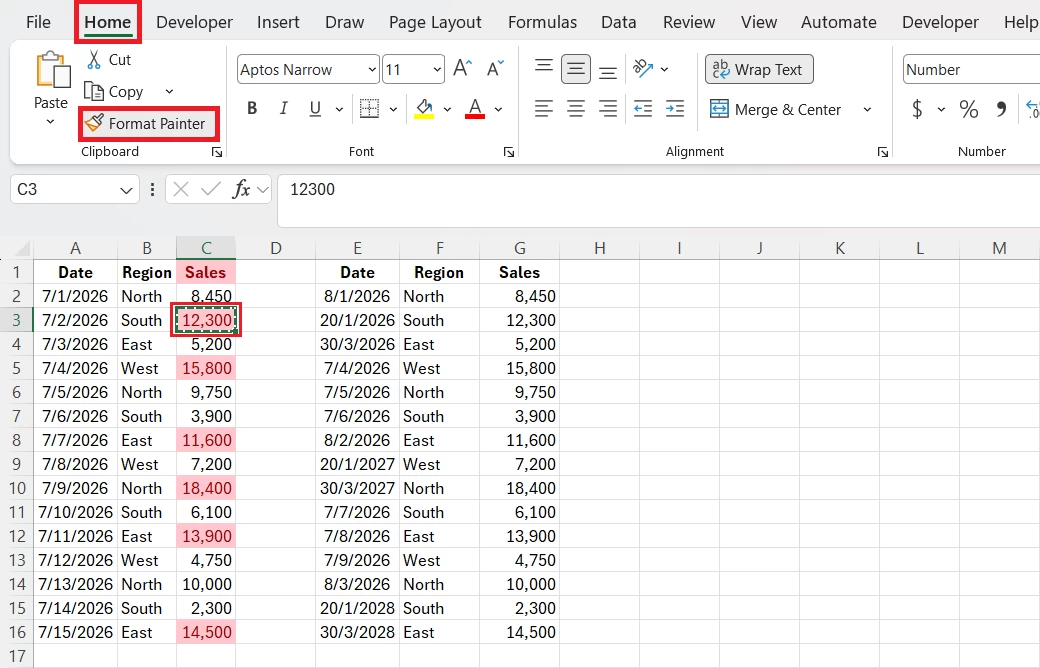
- Common Mistake: Forgetting to double-click Format Painter when applying formatting to multiple ranges.
Step 3: Apply the Formatting to the Destination Cells
- Paint the destination cells.

- Common Mistake: Including extra rows or columns that shouldn’t receive the formatting.
Method 2: Copy Conditional Formatting Using Paste Special
This is the ideal feature when copying formatting without changing cell values, and you want formatting only, not values or formulas.
Step 1: Copy the formatted cells using Ctrl + C.
- Common Mistake: Cutting instead of copying.
Step 2: Select the destination range.
- Common Mistake: Selecting a range with a different layout.
Step 3: Paste Formats Using Paste Special
- Right-click → Paste Special → Formatting or from Paste Special → Formatting
- Common Mistake: Choosing “All” instead of “Formats,” which copies values too.
Method 3: Copy Conditional Formatting with the Fill Handle
Useful when you need to quickly extend formatting down a list or across adjacent cells.
Step 1: Select the formatted cell.
- Select a cell that already has the conditional formatting.
- Common Mistake: Starting from an unformatted cell.
Step 2: Drag the Fill Handle Across the Target Cells
- Drag the fill handle (small square at the corner of the selected cell) across the target cells.
- Common Mistake: Dragging beyond the required range.
Step 3: Release the mouse
- Release the mouse to apply and
- From the Auto Fill Options below, select Fill Formatting Only.
- Common Mistake: Ignoring whether Excel adjusted the rule correctly.
Method 4: Copy Conditional Formatting to Another Worksheet
Use this method when you are copying Conditional Formatting within the same workbook but a different worksheet.
Step 1: Copy the formatted cells.
- Click the first cell of the formatted range, then drag to select the entire range that contains the conditional formatting.
- Press Ctrl + C or Home → Copy.
- Common Mistake: Copying only a single cell when multiple cells contain different rules.
Step 2: Open the destination worksheet.
- Switch to the worksheet in which you want the formatting to appear.
- Then select a range that matches the shape and size of the source range (same number of rows and columns). If you only want to paste starting at one cell, select the top‑left cell of the destination area.
- Common Mistake: Pasting into a different-sized range results in misaligned formatting, or only part of the destination gets formatted.
Step 3: Paste the Formatting Using Paste Special
- Right‑click the selected destination and use Paste Special → Formatting or from Paste Special → Formatting.
- Common Mistake: Forgetting to verify rule references if they point to another sheet.
Method 5: Copy Conditional Formatting to Another Workbook
Use this when you need the same conditional formatting rules in a different Excel Workbook.
Step 1: Open Both Excel Workbooks
- Make sure the source workbook (where the formatting exists) and the destination workbook are both open and visible.
- Common Mistake: Closing the source workbook before pasting.
Step 2: Copy the formatted cells.
- Select cells that contain the conditional formatting you want to copy.
- Then copy the formatted cells in the source workbook.
- Common Mistake: Selecting the wrong range.
Step 3: Paste the Conditional Formatting into the Second Workbook
- Switch to the destination workbook and use Paste Special → Formatting or from Paste Special → Formatting.
- Common Mistake: Not checking for broken references in formula-based rules.
Method 6: Copy Conditional Formatting in Excel Tables
Excel Tables are designed to grow. When you put conditional formatting on a table column, Excel usually applies the same rule automatically to any rows or columns you add. Below is a walkthrough of each step:
- Prerequisite: Make sure your data is an Excel Table. If not, follow the step below:
- To convert: Select any cell in your data → Insert → Table and confirm the range.
Step 1: Format a column inside the Table
- Click a cell range in the column you want formatted, then create the conditional formatting rule (Home → Conditional Formatting).
- Common Mistake: Selecting only part of the table.
Step 2: Insert or paste new columns into the Table
- Insert Columns: Right‑click a column in the table → Insert → Table Columns to the Left or Table Column to the Right.
- Paste Columns: If you paste columns into the table, paste them into the table area (not outside). Excel will convert the pasted columns into table columns.
- Common Mistake: Accidentally converting the table back to a normal range.
Step 3: Confirm the formatting extends automatically.
- Add one or two test rows or columns and verify they show the same conditional formatting (colors, icons, etc.).
- Whenever results look wrong, you can always edit the rules in Manage Rules and set the correct Applies to.
- Common Mistake: Assuming every custom rule automatically expands.
Common Issues When Copying Conditional Formatting in Excel
| Problem | Solution |
| Formatting doesn’t appear | Check if “Formatting” was pasted instead of values. |
| Wrong cells highlighted | Review relative and absolute references in the rule. |
| Rules duplicate repeatedly | Open Manage Rules and remove duplicates. |
| Workbook references break | Update external references after copying. |
| Formatting stops midway | Ensure the rule applies to the full destination range. |
Best Practices for Copying Conditional Formatting Without Errors
- Use Paste Special → Formatting when you only want formatting.
- Check Conditional Formatting → Manage Rules after copying.
- Use absolute references ($A$2) when rules should always point to one cell.
- Test formatting on a few rows before applying it to large datasets.
- Keep formatting rules simple to improve workbook performance.
Real-World Examples of Copying Conditional Formatting
Copy Conditional Formatting for Sales Reports
Apply the same color coding across monthly sales sheets or regional sheets, so comparisons stay consistent without rebuilding rules.
Apply Conditional Formatting in Project Tracking Sheets
Quickly copy overdue, at‑risk, or priority formatting to new project schedules so status visuals remain uniform. Quickly replicate visual cues (overdue, at‑risk, high priority) across new project schedules so teams interpret status consistently.
Reuse Conditional Formatting in KPI Dashboards
Reuse the same green/amber/red threshold rules across monthly or regional dashboards so performance comparisons are immediate and consistent. Create a single, well-documented rule set and then copy it to other sheets to avoid manual rework and reduce errors.
Key Takeaway
- Copy conditional formatting quickly using Format Painter, Paste Special, or the Fill Handle.
- Always verify rule references after copying, especially between worksheets or workbooks.
- Use Manage Rules to prevent duplicate or incorrect formatting rules.