
Have you ever entered an Excel formula that looked correct but returned the wrong result? In most cases, the problem isn’t the formula itself, but it’s the order in which Excel performs calculations. In this guide, we will explain how Excel evaluates formulas, when to use parentheses, and how to troubleshoot incorrect results so you can build accurate formulas with confidence that provide correct results.
⚡Quick Answer
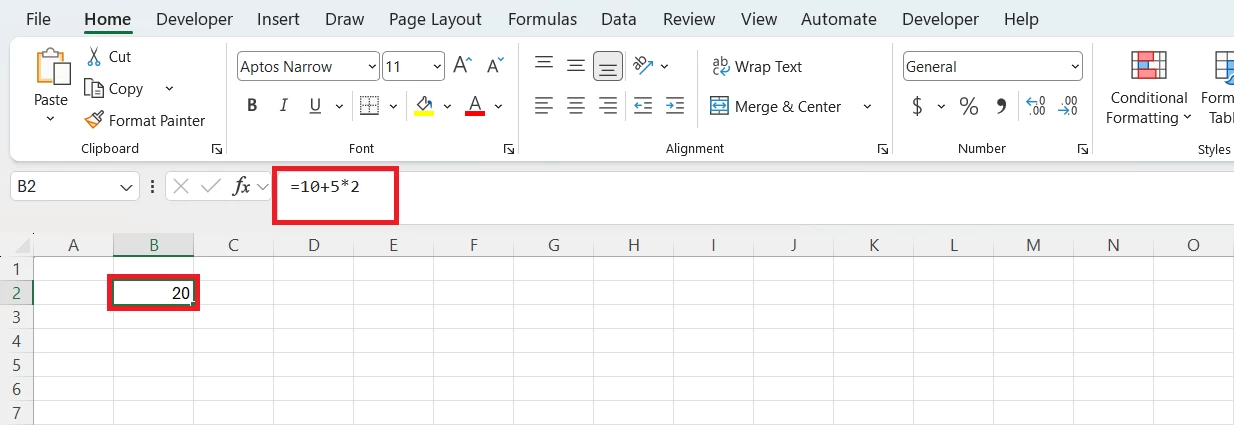
Formula (original): =10+5*2 — Excel returns 20 because it multiplies before adding.
Change the calculation order: =(10+5)*2 — Excel evaluates the parentheses first and returns 30.
What this means: Excel uses a fixed order of operations (operator precedence). Multiplication and division are calculated before addition and subtraction unless you override that order with parentheses.
Result: Using parentheses makes your intent explicit so formulas produce predictable, correct results.
+, -, *, or /, add parentheses to show the intended order. This improves readability and prevents mistakes even when Excel would compute the formula correctly.Examples
| Formula | Result |
|---|---|
=10+5*2 | 20 |
=(10+5)*2 | 30 |
What Is the Order of Operations in Excel?
Excel does not evaluate formulas strictly left to right. It follows a fixed operator precedence, a set of rules that tells Excel which parts of a formula to calculate first. This is the same idea as PEMDAS/BODMAS, but with a few Excel-specific operators included.
Example: If you mix different operators (for example + and *) without parentheses, Excel will apply its precedence rules and may produce a result you did not expect. Making the intended order explicit with parentheses prevents mistakes and makes formulas easier to read.
Excel Order of Operations Cheat Sheet
Excel evaluates parts of a formula in a fixed sequence called operator precedence. Use this cheat sheet to predict results and control calculation order with parentheses.
| Order | Operator | What it does / Example |
| 1 | Parentheses() | Forces calculation first; =(A1+B1) |
| 2 | Percent% | Applies to the number immediately before it; =50% |
| 3 | Exponent^ | Powers and roots; =2^3 |
| 4 | Multiply* and Divide / | Same priority; evaluated left to right; =A1*B1 |
| 5 | Add+ and Subtract- | Same priority; evaluated left to right; =A1+B1 |
| 6 | Concatenate& | Joins text strings; =A1&B1 |
| 7 | Comparison=, >, <, >=, <=, <> | Returns TRUE or FALSE; =A1>B1 |
Quick clarifications
- Same-level operators run left to right.
- Example:
A/B*Cis evaluated as(A/B)*C, notA/(B*C).
- Example:
- Percent acts on the immediate value.
- Example:
=100*50%→ Excel treats50%as0.5, so the result is50.
- Example:
- Concatenation is for text.
- Example:
="Total: "&A1joins the label and the cell value as text.
- Example:
- Comparisons return logical values.
- Example: =
A1>B1yieldsTRUEorFALSE, which can be used in IF and other functions.
- Example: =
Note: Parentheses always have the highest priority and override Excel’s default calculation order.
How Excel Evaluates Formulas Step by Step
Example: Consider this formula: =10+5*2. Excel does not evaluate strictly left to right. It follows operator precedence, so here’s how it works:
- Find the highest‑priority operation. In
=10+5*2, multiplication(*)has higher priority than addition(+), so Excel evaluates5*2first. - Calculate that part.
5*2=10. - Substitute the result back into the formula. The formula becomes
=10+10. - Evaluate the remaining operation.
10+10=20. That final value(20)is the cell result.
If you expected 10+5=15, then 15*2=30, you were thinking left to right. Excel’s rules give multiplication priority, so the result is 20. To force the other order, use parentheses: =(10+5)*2 → Excel evaluates the parentheses first and returns 30.
How Parentheses Affect Formula Results
Parentheses tell Excel to evaluate the enclosed expression before anything else. They override Excel’s normal order of operations, so a small change in placement can completely change the result.
Example
- Without parentheses:
=10+5*2→ Excel multiplies first, so5*2 = 10, then10+10 = 20. - With parentheses:
=(10+5)*2→ Excel adds first, so10+5 = 15, then15*2 = 30.
Step-by-step view
- Identify the parentheses. Anything inside
()is calculated first. - Compute the inner result. Replace the parentheses with that value.
- Finish the remaining operations using Excel’s normal precedence.
Quick reference
| Formula | What Excel does | Result |
=10+5*2 | Multiply first, then add | 20 |
=(10+5)*2 | Add inside parentheses, then multiply | 30 |
When a formula mixes +, -, *, or /, add parentheses around the part you want calculated first. It prevents mistakes and makes your intent obvious to anyone reading the sheet.

The above comparison clearly demonstrates how parentheses can affect calculation order.
Common Excel Order of Operations Mistakes
Understanding where formulas go wrong helps you fix them faster. Below are the five most common mistakes, each with a clear explanation, a concrete example, and a simple fix you can apply immediately.
1. Forgetting Parentheses
- What happens: Excel applies its default precedence, so multiplication and division run before addition and subtraction.
- Example (unexpected):
=A1+B1*C1. Excel multipliesB1*C1first, then addsA1. - If you meant to add first, use parentheses:
=(A1+B1)*C1. - Tip: When the intended grouping isn’t obvious, add parentheses to show your intent.
2. Assuming Excel Calculates Strictly Left to Right
- What happens: Operators at different precedence levels are not evaluated left to right. Only operators at the same level are.
- Example (common mistake):
=100-20/2 - How Excel evaluates:
20/2 = 10→100-10 = 90(not40). - Fix: If you want subtraction first, write
=(100-20)/2. - Tip: Scan a formula for mixed operators; if you see
*or/with+or-, think about parentheses.
3. Mixing functions with operators without thinking about order
- What happens: Functions are evaluated as a unit before surrounding operators apply.
- Example:
=SUM(A1:A5)*2→ Excel computes=SUM(A1:A5)first, then multiplies the result by2. - Fix: That behavior is usually correct; just be aware that the whole function result is treated like a single value. If you need part of the range handled differently, split the work into helper cells or use nested functions with parentheses.
- Tip: Treat function outputs as single values in the surrounding expression.
4. Misreading nested functions and parentheses
- What happens: Deeply nested expressions can be evaluated in an order you don’t expect unless you track each level.
- Example:
=((A1+B1)*C1)/SUM(D1:D5) - Evaluation order:
- Inner parentheses
A1+B1 - Multiply by
C1 - Evaluate
SUM(D1:D5) - Divide the multiplication result by the
SUM
- Inner parentheses
- Fix: Break the formula into named steps or helper cells (e.g., compute
A1+B1in one cell, multiply in the next, then divide). - Tip: If you can’t follow the order at a glance, simplify the formula.
5. Writing long, hard-to-debug single-line formulas
- What happens: Long formulas are error-prone and hard to audit, even when they return the correct result.
- Hard-to-read example:
=A1+B1*C1-D1/E1 - Clearer version:
=(A1+(B1*C1))-(D1/E1)same result, easier to understand. - Better approach: Use helper columns or named ranges for intermediate steps. Readability reduces mistakes. If a formula takes more than one minute to mentally parse, break it up.
Real-World Excel Order of Operations Examples
Sales Commission Formula
=(Sales*Commission Rate)+Bonus- Excel Multiplies Sales × Commission Rate, then adds Bonus.
- Example values: Sales =
$10,000; Commission Rate =0.05; Bonus =$1,000- Multiply commission:
10,000×0.05=500 - Add bonus:
500+1000=1500 - Final result:
$1,500
- Multiply commission:
Profit Margin Formula
=(Revenue-Cost)/Revenue- Excel first Subtracts Cost from Revenue, then divides that difference by Revenue.
- Example values: Revenue =
$20,000; Cost =$15,000- Subtract cost:
20,000-15,000=5,000 - Divide by revenue:
5,000÷20,000=0.25 - Final result:
0.25 (25%)
- Subtract cost:
Discount Calculation Formula
=Price*(1-Discount)- The discount percentage is calculated first
(1 − Discount), then multiplied by thePrice. - Example values: Price = $100; Discount = 0.20 (20%)
- Compute discount factor:
1-0.20=0.80 - Multiply by price:
100×0.80=80 - Final Result:
$80
- Compute discount factor:
Loan Interest Calculation Formula
=Principal*Annual Rate/12- Multiplies
Principal × Annual Rate, then divides by12(multiplication and division evaluated left to right). - Example values: Principal
= $10,000; Annual Rate= 0.05 (5%)- Multiply principal by annual rate:
10,000×0.05=500 - Divide by 12 months:
500 ÷ 12 = 41.6667 - Final result:
$41.67 (Monthly Interest)
- Multiply principal by annual rate:
Payroll Calculation Formula
= (Hours Worked*Hourly Rate) +Bonus- Hours are multiplied by the hourly rate first before adding the bonus.
- Example values:
Hours Worked = 40;Hourly Rate = $25;Bonus = $50. - Multiply hours by rate:
40 × 25 = 1,000 - Add bonus:
1,000 + 50 = 1,050 - Final Result:
$1,050
Best Practices for Writing Excel Formulas
- Use parentheses to improve readability. When in doubt, use parentheses to make the intended calculation order explicit.
- Break large formulas into Smaller Parts instead of one long formula; calculate intermediate values in helper columns. This makes formulas easier to test and maintain.
- Test complex formulas one section at a time.
- Avoid extremely long formulas when helper columns make calculations clearer.
- Use descriptive named ranges where appropriate.
- Verify formulas with sample data before applying them to large datasets.
- Use the Evaluate Formula tool whenever results don’t match expectations.
Conclusion
If your Excel formulas produce unexpected results, the issue is often the order of calculations rather than the formulas themselves. Understanding Excel’s operator precedence and using parentheses to control evaluation helps you avoid common mistakes and build formulas that behave exactly as intended. Whenever you’re unsure how Excel is interpreting a formula, use the Evaluate Formula tool to step through each calculation. Combining that with clear, well-structured formulas and strategic use of parentheses will save time, reduce errors, and make your spreadsheets easier to understand and maintain.