
Why Formula Mistakes Matter in Excel
Formulas are the backbone for performing calculations, data analysis, and reporting in Excel. But beginners often stumble on the formula mistakes that lead to big problems like incorrect totals, broken references, or unreadable spreadsheets, which impact the reliability of a worksheet. By spotting these mistakes early on, you can save time and avoid frustration.
1. Forgetting the Equal Sign (=)
- Every formula must start with =; without it, Excel will treat your entry as plain text.
- Example: SUM(A1:A5) won’t calculate anything unless you type =SUM(A1:A5).
2. Mixing Up Relative and Absolute References
- Relative references (A1): Adjust when copied to another cell whereas,
- Absolute references ($A$1): Stay fixed.
- Beginners often forget to add $ to lock the row or column, which leads to incorrect results.
3. Misusing Parentheses
- Parentheses control calculation order; forgetting them changes results.
- Example:
=10+20*3 = 70whereas,
=(10+20)*3 = 90- Excel evaluates parts of a formula in a fixed sequence called operator precedence and follows the PEMDAS rule (Parentheses, Exponents, Multiplication/Division, Addition/Subtraction).
4. Using Wrong Ranges
- Accidentally including extra rows or missing cells is common; always double-check the highlighted ranges.
5. Confusing Text with Numbers
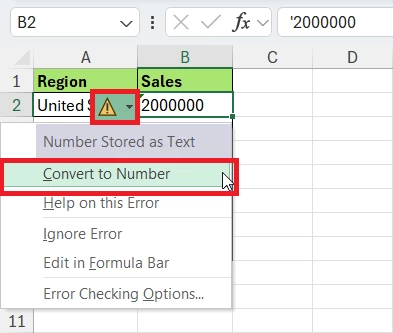
- When text is included in calculations, it can either break a formula or the formula automatically avoids the text and includes only numbers.
- “100” in quotes is text, not a number.
- The best practice to follow is always to convert text to numbers before performing calculations.
6. Ignoring Error Messages
Error messages in Excel like #DIV/0!, #VALUE!, #NAME? Are clues. Beginners often ignore them instead of fixing the cause. Learning what each error means can save hours. Below is the list of errors in Excel and their meaning.
| DIV/0! | Your formula tried to divide a number by zero or an empty cell. |
| VALUE! | Excel expected a number but found text, or the formula uses incompatible data types. |
| NAME? | Excel doesn’t recognize something. Example: A misspelled function name. |
| REF! | Invalid Cell Reference. A referenced cell was deleted, or a formula moved incorrectly. |
| N/A. | Value Not Found. A lookup (VLOOKUP, XLOOKUP, or MATCH) did not find a match. |
| ##### | Column Too Narrow. Widen the column or change formatting if needed. |
| NUM! | Invalid Numeric Value. Check calculation logic or use correct numeric ranges. |
| NULL! | Incorrect Range Separator. You used a space instead of a comma or colon in a range. |
| CALC! | A calculation error occurs when Excel can’t compute the result. |
| SPILL! | The formula wants to spill values into multiple cells, but something is blocking the output range. |
7. Hard-coding Values Instead of Using References
- =100*0.18 works, but it isn’t flexible; if you change the tax rate from 0.18 to 0.16, you will have to manually edit the formula in every cell.
- Instead, enter 100 in A1, and 0.18 in B1 and use references: =A1*B1.
8. Applying Formulas with Filters Applied
- Hidden rows get excluded in formulas. Formulas like SUM ignore filtered-out data.
- Copying formulas can skip hidden cells.
- The best practiceis to use the SUBTOTAL or AGGREGATE formula when filters are applied in a worksheet.
9. Deleting or Typing Data With Filters Applied
- When filters are applied, deleting rows may remove hidden data too, and typing can overwrite unseen cells.
- Always clear filters before editing or use “Visible cells only” (Alt + ;).
10. Copy-Pasting Formatting With Data
- Copy-paste brings hidden formatting that distorts the worksheets.
- Dates may turn into numbers, or formats may clash.
- Best practice: Use Paste Special → Values or Formats separately.
11. Merging Cells
- Merging cells can create sorting & filtering issues. Merged cells often disrupt operations.
- It can cause formula problems and can break formulas like VLOOKUP, INDEX, and MATCH.
- It can cause navigation issues where keyboard shortcuts fail.
Alternatives to Merging Cells:
- Center Across Selection (Format Cells → Alignment).
- Convert to Excel Table (Ctrl + T) or,
- Adjust column widths or borders.
Conclusion
Avoiding these beginner mistakes will make your Excel journey smoother and more productive. Mastering formulas early saves time, reduces errors, and makes your spreadsheets truly powerful.
To explore all our posts covering the fundamentals of Excel, follow this link.