
If you’ve ever struggled to highlight important data, make headings stand out, or keep your worksheets visually clean, you’re not alone. Most Excel users only focus on formulas, but poorly formatted text can make even the best spreadsheets hard to read. Excel Text Formatting isn’t just about making your spreadsheet look pretty; it’s about clarity and professionalism.
In this guide, you’ll learn how to format text in Excelstep-by-step, from basic tools like bold and font colorto lesser-known options like accounting underline. You’ll learn practical ways to format text using the Ribbon, Format Cells, and keyboard shortcutsso you can save time and impress with polished spreadsheets.
Introduction to Formatting Text in Excel
Excel text formatting allows you to enhance the readability and presentation of data within cells by adjusting font styles and sizes, changing colors, and applying an underline beneath the number or text, so that key information can be highlighted and differentiated. Excel also supports other formatting options like applying borders or shading to cells, number formatting, or conditional formatting, which allows you to apply automatic formatting to cells only when certain conditions are met. In Excel, text can be formatted in several ways: through the Ribbon, Format Cells, or by using keyboard shortcuts.
How to Apply Text Formatting from the Ribbon
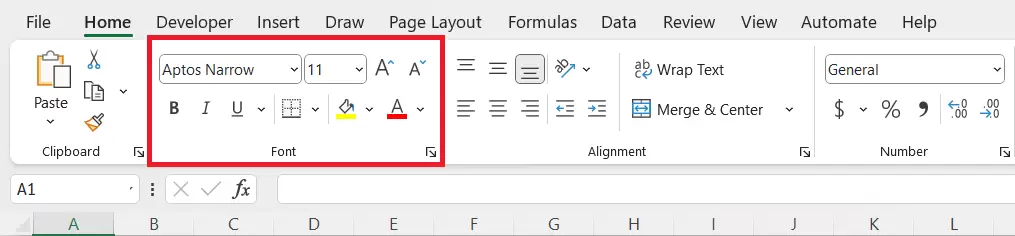
- Text Formatting options are present in the Font group. To apply formatting:
- Select the cell(s) you want to format.
- Go to the Home tab on the Ribbon.
- Then navigate to the Font group.
Bold

- Bold makes the text or numbers thicker and darker.
- Click the B icon in the Font Group in the Excel Ribbon.
Italics
- Italics slightly slant the text to the right.
- Click the I icon in the Font Group in the Excel Ribbon.
Font Color
- You can change the color of the text to highlight specific data, create categories, etc.
- Click the drop-down 🡳 located with the Font Color icon A and a color bar under it.
- Choose your desired color from the present color options.
Formatting Text with Format Cells Dialog Box
- Right-click the cell.
- Choose Format Cells.
- Under the Font tab:
- Use the Font Style options to change the text
- Check Bold, Italic, Bold Italic, or Regular.
- Use the color dropdown option to pick a Font color.
- Then click OK.
Working with Underlines in Excel
Underline draws a line beneath the text or number. Excel provides the option of four main types of underline:
- Single Underline: A basic line under the text or number.
- Double Underline: Two lines under the text or number.
- Accounting Single Underline: A single line that aligns across cells, used in accounting formats.
- Accounting Double Underline: A double line that aligns across cells, used in accounting formats.
How to Apply an Underline from the Ribbon
You can apply a Single or Double Underline using the Ribbon. For more options, use the Format Cells dialog box.
- Select the cell(s).
- Go to the Home tab.
- In the Font group, click the Underline icon (U) or use the dropdown 🡳 next to it for double underline.
Accounting Underline
The Accounting Underline is a special underline style used mostly in financial documents. It looks a little different from a regular underline; unlike regular underlines, it spans the entire width of the cell.
How to Apply an Accounting Underline
- Select the cells you want to format.
- Right-click the cell, choose Format Cells, or Press Ctrl + 1 to open Format Cells.
- Go to the Font tab.
- In the Underline dropdown 🡳, select:
- Single or Double Accounting Line
- Click OK.
Keyboard Shortcuts for Excel Text Formatting
Below are some Keyboard Shortcuts to change the Font:
| Bold | Ctrl + B |
| Italics | Ctrl + I |
| Single Underline | Ctrl + U |
| Format Cells | Ctrl + 1 |
Summary
- Bold makes the text or numbers thicker and darker.
- Italics slants the text to the right.
- Font Color changes the color of the text. It is used to highlight specific data points, warnings, or categories.
- Underline draws a line beneath the text.
To explore all our posts covering the fundamentals of Excel, please follow this link.