
Have you ever opened an Excel workbook and noticed that instead of dates being displayed as 01-Jan-2024, they are being displayed as numbers like 45231? This becomes a common frustration among beginners when they have to create a report to update data for the Dashboard or perform Date calculations. Excel date formulas seem simple until they break your reports or calculations. Whether you’re building dashboards, HR reports, or training analytics reports, mastering Excel date formulas is essential. In this guide, I will explain some common Excel date problems, show real-world scenario, and provide step-by-step solutions to future-proof your spreadsheets.
Why Excel Dates Go Wrong and How Excel Dates Work?
Before learning how to use an Excel dates formula, lets first understand how Excel handles dates. Unlike regular text values, Excel stores dates as serial numbers starting from January 1, 1900. For example, January 1, 1900, is stored as 1, January 2, 1900, is stored as 2, and each subsequent day increases the number by one.
This system makes date calculations possible, but it can also create confusion among new users. In fact, many users are surprised when Excel dates display numbers instead of readable dates. In most cases, the underlying value is correct, but the cell formatting is not due to which dates get displayed as numbers.
Here are some of the most common reasons due to which Excel date problems occur:
Imported Data Contains Mixed Date Formats
- When data is imported from HRMS software, CRM systems, payroll applications, or Google Sheets, date values often arrive in different formats.
- For example, one column may contain dates such as 12/03/2025, while another contains Mar 12, 2025.
- These inconsistencies can prevent Excel from recognizing dates correctly and may require you to fixExcel dates before performing any calculations or analysis.
Regional Settings Cause Date Confusion
- Date formats vary across countries and regions. While some locations use DD/MM/YYYY, others use MM/DD/YYYY.
- As a result, a date such as 03/12/2024 could be interpreted as either March 12 or December 3 depending on the system settings.
- This is one of the most common causes of Excel dates in different formats and can lead to inaccurate reports, formulas, and dashboards.
Some Date Functions Are Easy to Overlook
- Although the DATEDIF function is extremely useful for calculating the difference between two dates, it remains a hidden function in Excel.
- This function does not appear in the Excel Formula AutoComplete suggestions when we type formula in the cell, so many users are unaware that it exists.
Time Values Can Affect Date Calculations
- Dates that include timestamps can produce unexpected results.
- For example, subtracting one date time value from another may return a decimal number rather than a whole number because Excel is calculating both the date and the time portion.
Dates That Look Correct May Actually Be Text
One of the trickiest issues that occurs when a value looks like a date but it is actually stored as text. These text based dates can break formulas and create problems throughout your workbook.
Some common problems with text dates are:
- Excel dates not formatting or filtering correctly
- Dates sorting alphabetically instead of chronologically
- Incorrect results in date calculations
- PivotTables grouping dates incorrectly
- Errors when calculating Excel dates between two dates
Understanding these common issues is the first step toward fixing date related errors. In the below sections, you will learn practical Excel date formulas that helps to convert, format, calculate, and manage dates accurately.
Real-World Scenario: Common Excel Date Problems
Scenario:
Imagine you have downloaded a payroll report where the “Join Date” column looks like this:
- 12/03/2024
- 03-12-2024
- Mar 12 2024
- 12.03.2024
- 2024/03/12
They all look like valid dates, but Excel treats some of them as text. Mar 12 2024 and 12.03.2024 will be treated as text.
Impact:
- Tenure calculations of an employee will return incorrect results.
- The DATEDIF formula will give you the wrong month or year values.
- Dashboards break when filtering by date.
- Pivot tables fail to group data by months or years.
These were some of the most common issues I also faced when I started working on Excel reports. Using any date functionor performing a date difference in Excel would sometimes work, and sometimes it would give an unexpected error or incorrect results. So, below I have created steps that will resolve most of the issues with Excel date formulas and guide you to Fix Excel Dates error.
How to Fix Excel Dates Using Excel Date Formulas
Step 1: Fix Excel Dates Stored as Text
Using the DATEVALUE Formula to Convert Text Dates
The DATEVALUE formula converts text into Excel’s serial date format. Date values with spacing before Dates or in text format can be converted using this formula. The DATEVALUE formula works only if the text looks like a valid date in your system’s regional settings.
=DATEVALUE(Date_Text)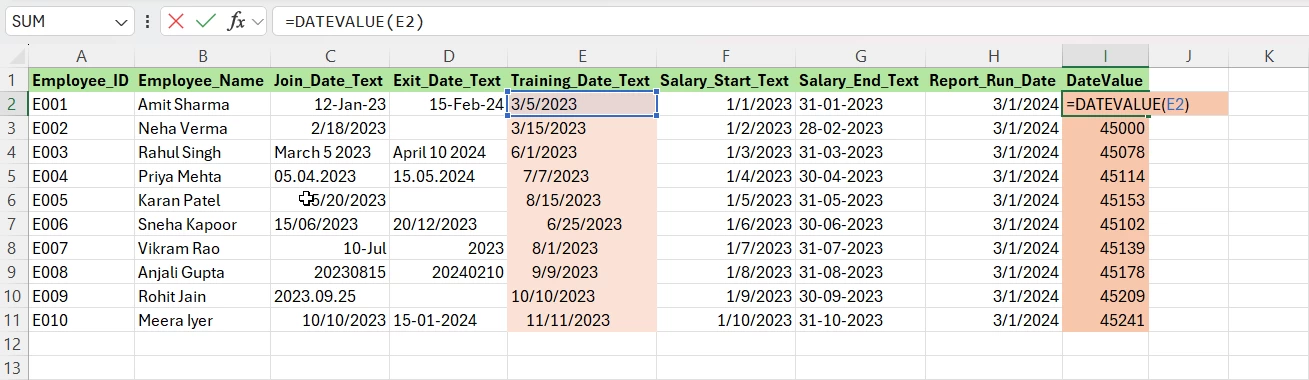
- Use the formula DATEVALUE.
=DATEVALUE(E2)- After applying this formula, the dates will be displayed in the Serial Numbers.

- Go to the Number Format drop-down and select Short or Long Dates
Standardize Excel Dates in Different Formats Using Power Query
If Dates are in mixed formats, the following steps can be followed to convert them to the same format for easier calculations:
- To open Power Query Editor,either convert data to Table format in Excel, then click on Get Data from Table/Range, or you can also Get Data from another source by clicking on the Get Data option.
- Use Power Query → Right Click on Header → Change Type → Select Date to standardize.
If the above does not work,
- Change Type →Using Locale,
- Locale →Select the correct regional setting,
- Date Type →Select Date
Use the DATE Function with LEFT, MID, and RIGHT to Fix Text Dates
The DATE Function converts a number like 20230815 into a real Excel date.
=DATE(LEFT(…), MID(…), RIGHT(…))=DATE(LEFT(C9,4), MID(C9,5,2), RIGHT(C9,2))LEFT(A1,4)takes the first 4 characters from the left so from 20230815 → 2023 will be taken. This is the year LEFT(A1,4).MID(A1,5,2)starts at position 5 and takes 2 characters from 20230815 → 08. This is the monthRIGHT(A1,2)takes the last 2 characters from 20230815 → 15. This is the day.
If the DATE Function does not works follow this link. It explains a more advanced Date Function.
Step 2: Extract Day, Month, and Year from Excel Dates
Once dates are fixed, you can easily extract components like day, month & year:
DAY Function
=DAY(A1)- DAY function returns the day of the month from 1 to 31.
- Example: If date in cell A1 = 16-Apr-2026, then result will be 16.
MONTH Function
=MONTH(A1)- MONTH function returns the month number from 1 to 12.
- Example: If date in A1 = 16-Apr-2026, result = 4 (April).
YEAR Function
=YEAR(A1)- YEAR function returns the year as a four-digit number.
- Example: If date in A1 = 16-Apr-2026, result = 2026.
These are extremely useful in HR dashboards, payroll reports, and timelines.
Step 3: Calculate Excel Dates Between Two Dates
Calculating differences between two dates is essential to calculate the number of days or months an employee has worked, calculate the time between training sessions or certifications, or maybe you want to ensure that deadlines (e.g., filing dates, audits) are met. You can use the formulas below to calculate differences between Dates based on your needs:
Using DATEDIF Formula for Years, Months, and Days
The DATEDIF formula in Excel is a quick way to calculate the dates between two dates in terms of days, months, or years. It’s especially useful when you want precise counts without manually working through calendars.
=DATEDIF(start_date, end_date, unit)- start_date → Will be the beginning date
- end_date → Is the ending date
- unit → It defines the type of result you want:
Calculates the total number of days between two dates.
=DATEDIF(A1,B1,"D")Calculates the complete months between two dates.
=DATEDIF(A1,B1,"M")This calculates complete years between two dates.
=DATEDIF(A1,B1,"Y")Calculate Excel Dates Excluding Weekends
You can calculate Excel Dates Excluding Weekends with the NETWORKDAYS formula.It calculates workdays between two dates, and exclude any weekends and holidays. It is a useful function for project planning, payroll, or any situation where you need to count business days quickly.
NETWORKDAYS(start_date,end_date,("holiday"))- Example: Imagine you need to calculate the number of working days between April 1, 2026, and April 15, 2026, while leaving out one holiday on April 8, 2026. You could go through the time‑consuming process of counting each day manually, but there’s a far more efficient way: just use the formula below to get the result instantly.
=NETWORKDAYS("01-Apr-2026","15-Apr-2026",("08-Apr-2026"))Subtract dates in Excel
=B1-A1- You can subtract datesin Excel using simple subtraction =B1-A1.
- This function will show the days between two dates, including weekends.
- It works correctly only if no time values exist along with dates.
Step 4: Fix Excel Dates in Different Formats
In Excel, date formatting is all about how the date is actually displayed in the cells and not the underlying value. Formatting is critical because it tells Excel how to show it. Dates can be formatted in multiple ways, either using the Ribbon, selecting Custom Date Formats, or using the TEXT Function:
Using the TEXT Function to Format Dates
TEXT Function converts dates in a specific format. By using this formula, dates can be customized in either dd/mm/yyyy or yyyy,dd,mm format, depending on the user’s preference or requirement.
=Text(Value,format_Text)- Example: For instance, say cell A1 contains the date 04‑16‑2026. If you’d like to switch its format from mm/dd/yyyy to dd‑mm‑yyyy, you can simply apply the formula below.
=TEXT(A1,"dd-mmm-yyyy")- Other useful formats in which date can be converted using this formula:
- “mm/dd/yyyy” → 04/16/2026
- “mmm yyyy” → Apr 2026
- “dddd” → Thursday
Step 5: Dynamic Excel Date Formulas for Dashboards and Reports
Dynamic Date Formulas ensure reports show the correct date without manual updates, which helps to project future dates and makes dates user-friendly in dashboards and summaries. The formulas below make your reports dynamic:
TODAY Function: Display the Current Date Automatically
=TODAY()- The Today’s date function in Excel. Returns the current system date.
- Updates every time you open or refresh the workbook.
- Example: If today is 16-Apr-2026, the formula shows 16-Apr-2026.
- Today’s Date function ensures your report always shows the current date.
NOW Function: Display the Current Date and Time
=NOW()- The NOW function in Excel is used to return the current system date and time.
- It’s dynamic and updates automatically whenever the worksheet recalculates or when you reopen the file.
- It displays something like 08/05/2026 09:41.
EOMONTH Function: Calculate Month-End Dates Automatically
=EOMONTH(A1,0)- End of month function returns the last day of the monthfor the date in cell A1.
- The second argument (0) means “same month.”
- 1 would mean “next month,”
- -1 means “previous month.”
- Example: If A1 = 16-Apr-2026, result = 30-Apr-2026.
- End of Month is perfect for month-end reporting deadlines.
Add or Subtract Months with EDATE Function
=EDATE(A1,1)- Add/subtract months EDATE formula shifts the date in cell A1 forward or backward by a given number of months.
- The second argument is the number of months:
- 1 → adds 1 month
- -1 → subtracts 1 month
- Example: If A1 = 16-Apr-2026, then:
- =EDATE(A1,-1) → 16-Mar-2026
- =EDATE(A1,1) → 16-May-2026
- Add/Subtract Months function in Excel helps with forecasting or rolling monthly comparisons.
These are some essential Excel formulas using dates for payroll cycles, reporting, and automation.
Common Date Mistakes to Avoid in Excel
- Typing dates as text. Example: ’12-03-2024 leading apostrophe makes it text, not a real date.
- Mixing separators. Using inconsistent symbols like /, -, ., or spaces can confuse Excel’s date recognition.
- Using DATEVALUE() without checking regional settings. A format valid in one locale (e.g., dd/mm/yyyy) may fail in another (e.g., mm/dd/yyyy).
- Assuming DATEDIF is broken. It works, but it’s undocumented. Errors usually come from incorrect arguments, not the function itself.
- Formatting text as a date. Changing the cell format doesn’t convert text into a true date value.
- Subtracting dates with hidden time values. Dates that include times can cause unexpected results when calculating differences.
- Importing CSV files without setting local settings. Imported data may default to US-style dates (mm/dd/yyyy) and misinterpret day/month order.
By avoiding these common mistakes, you’ll ensure your date formulas and reporting stay accurate and reliable.
How to Future Proof Your Date Data in Excel
To avoid recurring issues:
- Use Data Validation to enforce consistent date entry rules so users can’t type invalid or text-based dates.
- Store dates in ISO format: YYYY-MM-DD. This universal standard avoids confusion across regions and systems.
- Create a helper column using the formula =DATE(YEAR(A1),MONTH(A1),DAY(A1)). This will clean the imported data automatically.
- Use Power Query for all external data sources. Always import and transform dates through Power Query to ensure consistency.
- Build a Calendar Table for dashboards and Power Pivot. A dedicated calendar table makes time intelligence functions like year-to-date or month comparisons reliable.
- Always standardize dates before applying formulas. Normalize formats first, then apply calculations like NETWORKDAYS, EOMONTH, or DATEDIF to avoid errors.
Conclusion
In Excel, date formulas are incredibly powerful but only when your data is clean and consistent. Most errors don’t come from formulas; they come from poorly formatted dates. By understanding how Excel stores dates, using the right formulas, and avoiding common pitfalls, you can eliminate errors and build reliable dashboards. Mastering these techniques ensures your spreadsheets stay accurate no matter how messy the source data is.
To explore all our posts covering the fundamentals of Excel, please follow this link.
FAQ’s
What’s the difference between TODAY() and NOW()?
TODAY() → Returns only the current date. NOW() → Returns the current date and time. Use TODAY() for reports and NOW() when time stamps are needed.
Why does subtracting two dates sometimes give unexpected results?
If the dates include hidden time values, the difference may not be a whole number. Use INT() or ROUND() to clean results.
How do I handle imported CSV files with dates?
Always set the correct locale before importing. Otherwise, Excel may misinterpret day/month order (e.g., 03/12/2024 as March 12 vs. December 3).
Why does formatting text as a date does not work?
Changing the cell format doesn’t convert text into a real date. Use DATEVALUE() or rebuild the date.