
Are you struggling with Excel Dates Not Formatting? You select a column, choose Short Date from Number Format, and nothing changes. The values still look like text. Sorting dates does not work. Pivot Tables group data incorrectly. Formulas return unexpected results when performing the date calculations. If you’re dealing with Excel dates not formatting issues, the problem is usually that Excel doesn’t recognize the values in cells as real dates. Fortunately, you can fix most date formatting issues in less than a minute by following this guide.
If your Excel dates are not formatting correctly, they are most likely stored as text values instead of real dates. The quickest and most reliable way to fix this is to use the Text to Columns feature, which converts text into proper date values without changing the actual dates.
Select the affected date column, go to the Data tab, click Text to Columns, choose Delimited, click Next twice without selecting any delimiters, then under Column Data Format, choose Date, select the correct date order (DMY, MDY, YMD, etc.), and click Finish. Excel will immediately convert the text entries into real date values.
Ctrl + 1 to open the Format Cells dialog, then select a date format from the Date category.Alternative Fix: For Dynamic Worksheets
If you need an automatic solution that is dynamic, and you don’t want to change date values manually every time using text to columns, then rebuild the dates using the DATE function.
For dates stored like 15-01-2026. Use the formula below:
=DATE(RIGHT(TRIM(A2),4),MID(TRIM(A2),4,2),LEFT(TRIM(A2),2))What Each Part of the formula Does
- TRIM removes any extra spaces in the Cell.
- RIGHT extracts the year from the Date.
- MID extracts the month.
- LEFT extracts the day and,
- DATE creates a genuine Excel date value.
Why It’s Better Than DATEVALUE ()
Unlike DATEVALUE () formula, this method doesn’t rely heavily on regional settings and often works when imported dates use inconsistent formatting.
When It Fails
This formula assumes that date values in cells are in DMYstructure. If your source data contains dates in YMD or MDY formats, you will need to adjust the positions of the formula accordingly.
Step-by-Step Guide to Fix Excel Dates Not Formatting
Step 1: Check Whether Excel Recognizes the Value as a Date or Text
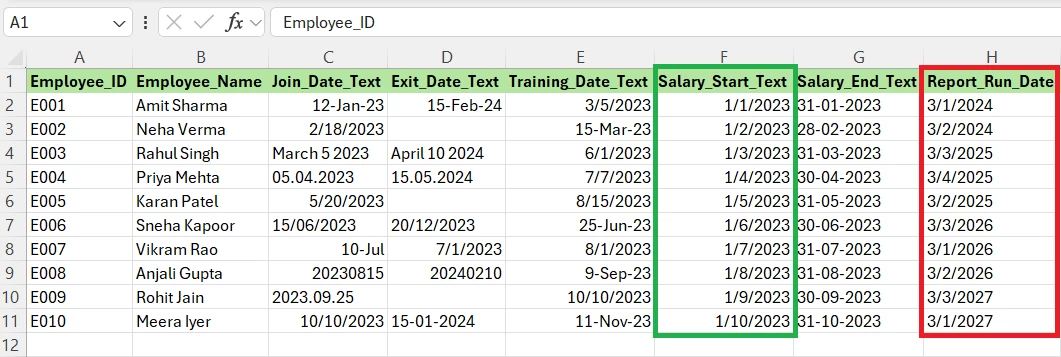
Common Mistake
Many users immediately try to change Dates via Date format option without checking whether Excel recognizes the value in Cells as a date or not. Formatting alone cannot convert text into dates.
Step 2: Open the Text to Columns Wizard
- Navigate to: Data → Text to Columns
- Select: Delimited → Next

Common Mistake
When converting from text to columns choosing the wrong date order (MDY instead of DMY) can create incorrect dates. Make sure correct date format is selected.
Step 3: Select the Correct Date Format
- In Step 3 of the wizard.
- Select: Column Data Format → Date
- Then choose date format.
Common Mistake
This is the important step and skipping this step causes Excel to leave values as text.
Step 4: Confirm the Date Conversion
After clicking Finish. Now Try changing the Date format by following below steps:
- Home → Number Format → Long Date
Common Mistake
Assuming that the fix worked without testing sorting or performing date calculations. Real dates should sort chronologically, and formulas should not break when performing calculations.
Step 5: Apply the Alternative Formula for Dynamic Data
If Text to Columns isn’t practical because your data refreshes automatically, use the below robust DATE formula that parses and rebuilds dates from formats like d/m/yyyy, dd/mm/yyyy, d-m-yyyy, or dd-mm-yyyy, and place the formula in a helper column so the converted dates update dynamically.
=DATE(
VALUE(MID(G2, FIND("-",G2, FIND("-",G2)+1)+1, 99)),
VALUE(MID(G2, FIND("-",G2)+1, FIND("-",G2, FIND("-",G2)+1) - FIND("-",G2) - 1)),
VALUE(LEFT(G2, FIND("-",G2)-1))
)
=DATE(
VALUE(MID(H2, FIND("/",H2, FIND("/",H2)+1)+1, 99)),
VALUE(MID(H2, FIND("/",H2)+1, FIND("/",H2, FIND("/",H2)+1) - FIND("/",H2) - 1)),
VALUE(LEFT(H2, FIND("/",H2)-1))
)- This formula uses FIND to locate the slashes, VALUE to convert pieces to numbers, and DATE.
- First, it finds the first and second /,
- Then it extracts year/month/day regardless of 1‑ or 2‑digit day/month,
- Converts to numbers and then builds a proper date.
Common Mistake
Using DATEVALUE() on imported datasets with mixed separators or regional-format mismatches.
Why Are Dates Not Formatting Correctly in Excel?
Some of the most common causes of incorrect formatting are:
Imported Data is Stored as Text
CSV exports, ERP systems, accounting software, and web downloads frequently import dates as text instead of Date Values.
Regional Settings Mismatch
For example, 01/05/2026 could mean different things depending on the system settings.
- January 5, 2026
- May 1, 2026
Hidden Characters
Extra spaces and non-printing characters in cells, along with dates, often prevent Excel from recognizing dates correctly.
Mixed Date Formats
A single column may contain dates in multiple formats, which creates parsing problems. Below are some examples of such dates.
- 15/01/2026
- 2026-01-15
- 01-15-2026
How Workbook Regional Settings Can Override Excel Date Formatting
If formatting suddenly stops working, follow the steps below to resolve the issue, check:
Calculation Mode
- Go to: Formulas → Calculation Options
- Ensure: Automatic is selected.
Regional Settings
Confirm your Windows date settings match the date structure used in the workbook.
Pivot Table Formatting
Pivot Tables frequently override source formatting to fix this issue. Follow the steps below:
- Right-click the date field.
- Select Field Settings.
- Reapply the desired date format.
Real-World Examples of Excel Date Formatting Issues
Scenario 1: Fixing Dates in Imported Sales Reports
Imagine a sales team importing monthly CSV files and, after the import, finds dates stored as text, for example, 2026-01-15,which appears on the left side of the cells. This prevents sorting and date calculations, which quickly becomes a hassle.
Quick fix: Select the date column and use Text to Columns (Data → Text to Columns) to convert the text into real date values; this converts thousands of records instantly.
Scenario 2: Resolving Date Format Changes After an Office 365 Update
Sometimes after an update, there can be issues and dates may no longer display correctly. If dates are not displayed correctly across workbooks follow the below troubleshooting steps to resolve the issue:
- Check regional and language settings to ensure Excel is using the correct date order (MDY, DMY, etc.).
- Reapply a date format (Home → Number Format → Short Date/Long Date) to the affected cells.
- Refresh Pivot Tables and data connections so they pick up the corrected values.
Scenario 3: Repairing Broken Dates When Copying Between Worksheets
A user copies date values into a new workbook; and after copying the visible formatting of Dates looks right but when the formulas are applied or dates are sorted it fails.
Cause: The problem here are the cells which contains text, not true date values.
Solutions:
- Convert the affected column to real dates using Text to Columns (choose Date and the correct order).
- Or rebuild dates with the DATE formula (for example =DATE (year, month, day)) when components are separated.
- After the conversion, confirm by changing the cell format or using the formula.
=ISNUMBER (cell)- A real date value returns TRUE whereas a non-recognizable date format or Text returns False.
Conclusion
When Excel dates are not formatting correctly, don’t start by changing formats repeatedly.
Instead:
- Use Text to Columns as the primary fix.
- Verify Excel recognizes the values as dates.
- Use a DATE () formula for dynamic datasets.
- Check regional settings and Pivot Table formatting if problems persist.
In most cases, converting text dates into real Excel date values solves the issue immediately, but sometimes fixing dates requires more than one formula and method. If dates are still not formatting correctly, check this article, which covers multiple methods to fix Excel Dates.