
Getting lost in a large Excel worksheet is one of the biggest frustrations for beginners. Clicking through hundreds of cells, rows and columns wastes time and often leads to mistakes. Whether you’re just starting out or refreshing your skills, learning how to navigate these building blocks unlocks the true power of spreadsheets, helping you work faster. In this post, we’ll break down what cells, columns, and rows are, explain how they function in a worksheet, and share practical navigation tips to make navigation through worksheets quick using simple shortcuts.
Think of an Excel worksheet as a grid made up of cells, rows, and columns. Understanding these basics helps you select data faster, build formulas confidently, and work efficiently with any spreadsheet.
Instead of scrolling through large worksheets, use
Ctrl + Arrow Keys to jump between data,
Ctrl + G to go directly to a specific cell, or enter a cell
reference (for example, H350) in the Name Box
and press Enter.
Ctrl + End to jump to the last used cell in your worksheet. If Excel takes you beyond your actual data, remove any unnecessary formatting or hidden content to reset the used range.
What Is a Cell?

- A cell is the smallest unit in an Excel Worksheet. This is where you can enter Text, Numbers, Formulas, etc.
- Each cell has a unique address, known as a cell reference which consists of a column letter + row number.
- To check the unique address of any cell:
- click on the cell, and the unique address is displayed in the Name Box on the top left as shown in the image above
- An Example of a Cell: The cell in Column A and Row 1 is A1.
What Is a Cell Range?
A cell range is a group of two or more cells in Excel. Instead of working with just one cell at a time, by selecting ranges you can perform operations on multiple cells at once.
For Example:
- Single cell → A1
- Block of cells → A1:C5 (this includes all cells from A1 to C5)
- Entire row → 4:4
- Entire column → B:B
How to Select a Range
- Click and drag: Select a rectangular block of cells.
- Ctrl + Click: Select multiple non-adjacent cells.
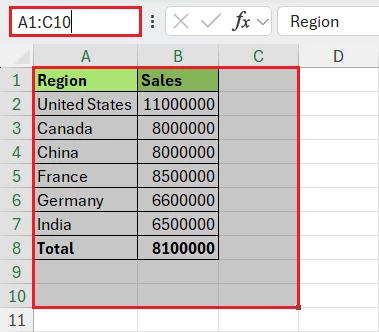
- Name Box: Type a range like A1:C10 into the Name Box (next to the formula bar) to jump directly to it as shown below.
Using Ranges in Formulas
Ranges are the backbone of Excel formulas. Here are some common examples:
- =SUM(B2:B7) → This formula adds all values from cells B2 to B7.
- =AVERAGE(B2:B7) → Average formula averages values across cells B2 to B7.
- =MAX(B2:B7) → Max finds the highest value in the selected range B2 to B7.
Formatting Ranges
You can apply formatting to entire ranges at once:
- Colors & Borders: To Highlight important data.
- Conditional Formatting: Automatically color-code cells based on rules (e.g., highlight values above average).
- Data Validation: Restrict input across a range (e.g., only allow numbers between 1 and 100).
What Is a Row?
- A horizontal line of cells that has numbers starting 1,2,3 along the left side of the worksheet.
- The row goes from left to right, and cell addresses in a row have a common last number.
- For example, Row 1 contains cells A1, B1, C1, etc.
What Is a Column?
- A vertical group of cells that are labeled as A, B, C… Z, AA, AB… along the top of the sheet.
- The column goes from top to bottom. For example, Column A includes A1, A2, A3, etc.
What is an Excel Worksheet?
- A worksheet is a grid made of columns and rows, and the intersection of a column and a row is known as a cell.
- For Example: Column A + Row 6 = Cell A6
How to Navigate a Worksheet Quickly
- Use Ctrl + Arrow keysshortcut to quickly jump across rows and columns
- Use Ctrl + Shift + Arrow keysto select multiple cells quickly
- Click on Column Header A to select the whole column
- Jump to any Cell using the shortcut Ctrl + G or F5 and type the cell reference (such as D250) and press Enter.
- Click on the Name Box (left of the formula bar), type a cell reference, and press Enter. Example: AA500. Excel jumps on the cell immediately.
- When working with large worksheets, you can also Freeze Panes to keep important rows or columns visible.
- Click on row Number 1 to select the whole row.
Worksheet Navigation Shortcuts
| Select Row | Shift + Space |
| Select Column | Ctrl + Space |
| Last Used Cell | Ctrl + End |
| Move to Data Edge | Ctrl + Arrow |
| Go To | Ctrl + G |
| Extend Selection | Shift + Arrow |
| Select Data Range | Ctrl + Shift + Arrow |
Common Mistakes Beginners Make
- Typing formulas in cells without selecting the correct range.
- Confusing rows with columns.
- Using merged cells unnecessarily.
- Scrolling instead of using navigation shortcuts.
- Forgetting to use Ctrl + End to check the actual used range.
- Sometimes Excel calculations don’t refresh because the workbook is set to Manual calculation mode or other settings are preventing updates. If your formulas or cells don’t update after you edit them, try the following methods to restore automatic calculation and refresh your workbook.
Summary
- Cell is the smallest unit in an Excel Worksheet. This is where you can enter Text, Numbers, Formulas, etc.
- Row is a horizontal line of cells that have numbers starting 1,2,3 along the left side of the worksheet. The row goes from left to right.
- A column is a vertical group of cells that are labeled as A, B, C… Z, AA, AB… along the top of the sheet. The column goes from top to bottom.
- Worksheet is grid made of columns and rows, and the intersection of a column and a row is known as a cell.
To explore all our posts covering the fundamentals of Excel, please follow this link.