
If you’re new to Excel, even simple tasks like opening, saving, or closinga workbook can feel confusing at first. One wrong click can lead to unsaved changes, lost files, or difficulty finding your workbooks later. In this beginner-friendly guide, you’ll learn exactly how to open Excel files, save them properly using Save, Save As, and AutoSave, and close workbooks safely without losing your work. Whether you’re using Excel for school, office work, or personal budgeting, this step-by-step tutorial will help you build confidence from the very beginning.
Introduction to File Management in Excel
Before diving into formulas and data entry, every beginner should master the basics of file management in Excel. Knowing how to open, save, and close workbooks properly keeps your spreadsheets organized, prevents accidental loss, and makes it easier to find important files later. Whether you’re building a budget, preparing reports, or tracking records, good file habits help keep your work safe and accessible.
Why Opening, Saving, and Closing Files Properly Matters
Proper file management in Excel is important because it helps you:
- Avoid losing unsaved changes
- Keep versions organized and easy to locate
- Prevent overwriting important spreadsheets
- Use AutoSave to protect against crashes
- Work more efficiently and confidently
For example, if you close an Excel workbook without saving recent changes, all your latest work may be lost. Similarly, using Save As incorrectly can create confusion between multiple versions of the same file. Understanding these basics helps you avoid common problems and work more efficiently.
Common Mistakes Beginners Make
New users often make small mistakes that can lead to frustration or lost work. Here are some of the most common ones:
- Closing Excel without saving changes
- Confusing Save and Save As, leading to duplicate files
- Saving workbooks in the wrong folder and struggling to find them later
- Ignoring AutoSave and relying only on manual saving
- Accidentally overwriting existing files with new data
- Closing the entire Excel app instead of just one workbook
By understanding these common mistakes early, you can avoid unnecessary problems and manage Excel files more confidently and professionally.
Opening an Excel File: Step-by-Step Guide
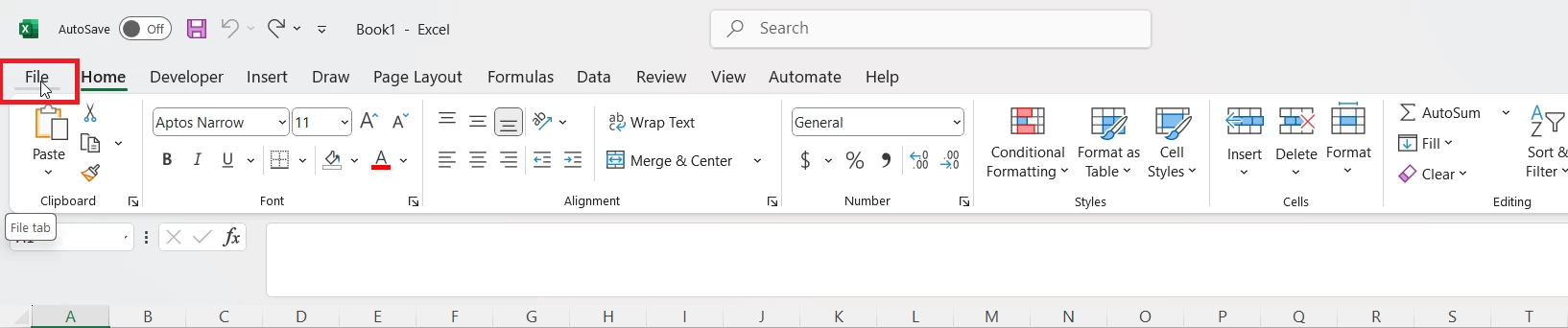
Method 1: Open an Excel File from the Excel Start Screen
- Click on File → Open
- You can also choose to open a file from:
- Recent: It provides Quick access to recently opened files
- Browse: You can also find a file on your computer or drive
- When you find the file you want to open, click on the file and hit Open.

Method 2: Open an Excel File from Windows File Explorer
You can also open an Excel workbook directly from your computer using Windows File Explorer. This is one of the fastest and easiest ways to access saved Excel files.
Steps to Open an Excel File from File Explorer
- Open Windows File Explorer on your computer.
- Navigate to the folder where your Excel file is saved.
- Locate the Excel workbook with the .xlsx or .xls extension.
- Double-click the file.
After double-clicking, Microsoft Excel will launch automatically and open the selectedworkbook.
If the File Does Not Open in Excel
SometimesExcel files may open in a different spreadsheet application, or Excel may not be set as the default program for .xlsx or .xls files. In that case:
- Right-click the Excel file.
- Select Open with.
- Choose Excel from the list of programs.
How to Save an Excel File: Save As, Save, and AutoSave Options
How to Use Save As in Excel
If you want to create a copy or keep the original file unchanged, use Save As.
- Click on File → Save As
- Choose a folder and enter a file name
- Select file type (usually .xlsx)
- Then Click Save
Keyboard Shortcut to Save Files
- Press Ctrl + S anytime to quickly save updates
If you are saving a file for the first time, select the preferred folder to save the file in.
Understanding AutoSave in Excel
This feature is available in Microsoft 365 versions of Excel and works when the file is saved to OneDrive or SharePoint.
How to Turn AutoSave On or Off
To turn on AutoSave:
- Open your Excel file.
- Save it to OneDrive or SharePoint.
- Go to File > Save As.
- Choose your OneDrive or SharePoint location.
- Once saved, AutoSave will be enabled automatically.
The AutoSave toggle is located in the top-left corner of Excel. You can switch it on or off.
How to Close an Excel File
Method 1: Close a Workbook Using the File Menu
- Click File → Close
Method 2: Close an Excel Window Using the X Button
Click on the Xat the top-right of the workbook window to close a file.
Method 3: Keyboard Shortcut to Close Excel Files
- Press Ctrl + W
- If you’ve made changes, then Excel will prompt you to save the file before closing.
Summary
Opening an Excel File
- Directly from Excel: Open the app → Click File > Open → Choose a file from Recent, Browse, or cloud locations (OneDrive, SharePoint).
- From File Explorer: Double-click any .xlsx, .xls, or .csv file to open it in Excel.
- Drag & Drop: Drag a file into an open Excel window to launch it instantly.
Saving Excel Workbooks
- First-Time Save: Click File > Save As → Choose location → Name your file → Click Save.
- Quick Save: Use the shortcut Ctrl + S anytime after the initial save to quickly save a file.
- Auto Save: Available in Microsoft 365. Save to Cloud for automatic backup and multi-device access, choose OneDrive or SharePoint.
- Save in Different Formats: Use File > Save As → Choose formats like .xls, .csv, or .pdf.
Closing Excel Files Safely
- Click the X in the file window or go to File > Close.
- If there are unsaved changes, Excel will prompt you to save, Don’t Save, or Cancel.
- Keyboard shortcut: Use the shortcut Ctrl + W to close the current Excel workbook.
To explore all our posts covering the fundamentals of Excel, please follow this link.