
Are you struggling to make your Excel data stand out? Shading in Excel is one of the simplest yet most powerful ways to transform dull spreadsheets into clear, visually engaging reports and guide viewers’ attention where it matters most. Whether you’re highlighting key figures, organizing data, or building dashboards, mastering shading techniques in Excel can dramatically improve readability and insight. In this guide, you’ll learn everything from basic fill colors to advanced conditional formatting step by step.
Shading in Excel means applying a background color or pattern to cells, rows, or columns to improve readability and highlight important information.
To shade cells, select the cells, go to Home > Fill Color, and choose a color. You can also use Conditional Formatting to apply shading automatically based on cell values or formulas.
=MOD(ROW(),2)=0. This formula returns TRUE for even-numbered rows and FALSE for odd-numbered rows.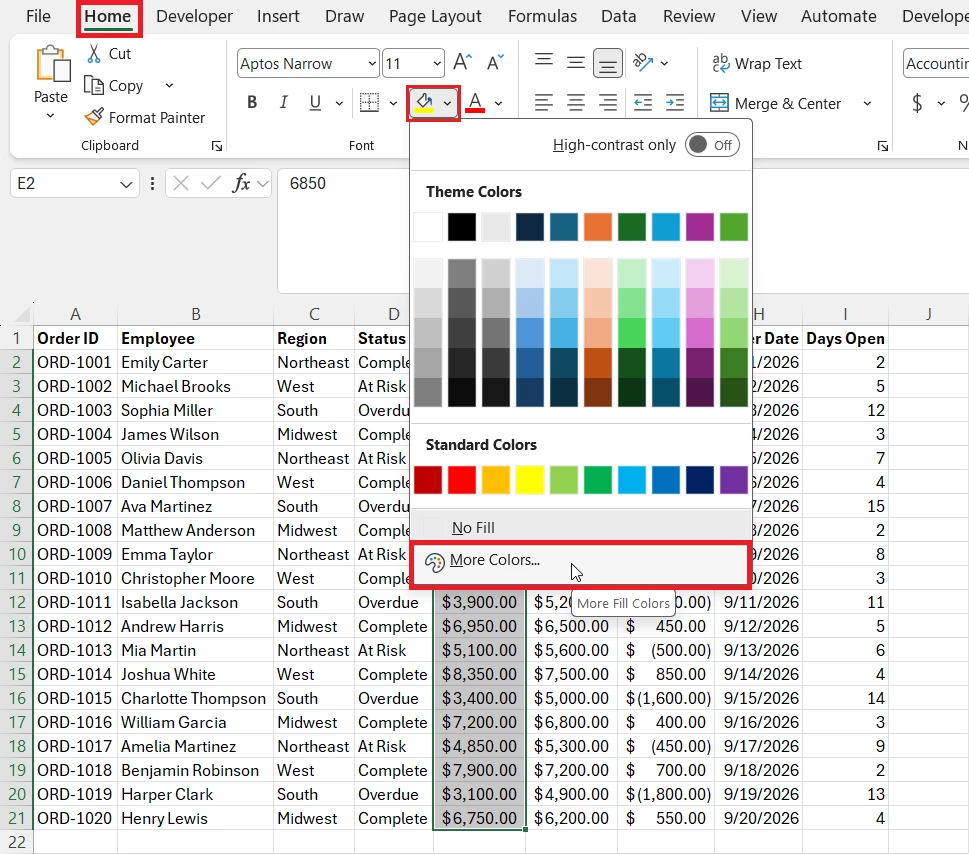
What Is Shading in Excel?
Shading in Excel refers to applying background colors or patterns to cells to make data stand out or to group related information. It is one of the most effective ways to highlight, organize, and visually differentiate data in your worksheets. In this tutorial, we’ll explore what shading in Excel is, why it’s useful, and how to apply it efficiently using various methods.
How to Shade Cells in Excel
How to Shade Cells in Excel with Color
The quickest way to shade cells is with the Fill Color tool.

- Select the cell(s) you want to shade.
- Go to the Home tab.
- Click the Fill Color icon, which is a paint bucket.
- If you want to change or select the color, click on the drop-down 🡳 next to the Fill Color icon
- Then choose your preferred color from the palette.
The selected cells immediately receive the chosen background color. This is ideal when you only need to shade a few cells and don’t need the formatting to change automatically.
How to Apply a Custom Fill Color in Excel
You can use a custom color when the standard palette doesn’t match your workbook.
- Select the cells, open Fill Color → More Colors.
- Use the Custom tab to enter specific RGB values or pick from the color wheel.
- Click OK.
How to Remove Cell Shading in Excel
To remove shading:
- Select the shaded cells.
- Go to Home then open Fill Color.
- Choose No Fill.
If the color comes from conditional formatting rather than manual formatting, removing the fill won’t necessarily remove the visible color. You’ll need to modify or remove the conditional-formatting rule.
Common Mistake: Trying to delete shading with the Delete key. That only clears content, not formatting.
How to Apply Pattern Shading in Excel
What Is Pattern Shading in Excel?
Pattern shading lets you apply a background color with pattern color and style, making it easier to differentiate data, especially when printing in black and white or when color alone is not enough to differentiate between data.
How to Shade Cells with Lines or Patterns
Depending on your Excel version, pattern options are available through the cell-formatting controls.
- Select the cells you want to apply Pattern Shading to
- Press Ctrl + 1 or right-click on cell(s) to open the Format Cells dialog box.
- In the Format Cells dialog box, navigate to the Fill tab.
- Choose a background color, pattern color, and style.
Pattern Color vs. Background Color in Excel
A pattern can have two visual components:
- Background color: The underlying cell color.
- Pattern color: The color used for the lines, dots, or other pattern.
Tip: Use a light background with sufficient contrast so the text remains easy to read.
How to Shade Rows and Columns Automatically
How to Alternate Row Colors in Excel Automatically
To alternate row colors automatically, use:
=MOD(ROW(),2)=0For example, select A2:E20, create a conditional-formatting rule, enter the formula, and select a light fill color.
- Select your data range.
- Go to Home → Conditional Formatting → New Rule.
- Choose “Use a formula to determine which cells to format”.
- Enter:
=MOD(ROW(),2)=0 - Click Format → Fill → Choose a light color → OK.
The ROW() function returns the current row number, while MOD(...,2) determines whether that number is even. After applying this formula even-numbered rows are shaded.
How to Alternate Row Colors in Excel Without a Table
You don’t need to convert your data into an Excel Table to create banded rows. Use conditional formatting with:
=MOD(ROW(),2)=0The difference is that Format as Table provides built-in table styles, while conditional formatting gives you more control over the exact range, formula, and formatting rules.
This approach is useful when you want alternating row colors but don’t want the data converted into a Table.
How to Alternate Column Shading in Excel
To shade every second column, use:
=MOD(COLUMN(),2)=0For example, if your selected range is A1:I21, this formula identifies even-numbered worksheet columns.
How to Shade Every Nth Row in Excel
To shade every third row, use:
=MOD(ROW(),3)=0Change 3 to another number to shade every fifth, tenth, or other nth row.
For example:
=MOD(ROW(),5)=0Shades every fifth worksheet row.
How to Use Conditional Formatting for Excel Shading
What Is Conditional Formatting in Excel?
Conditional Formatting allows you to apply automatic formatting to cells, such as color fills, icons, or data bars, only when certain conditions are met.
How to Shade Cells Based on Value in Excel
There are multiple Conditional Formatting options available. Below is a simple example of applying Conditional Formatting to Numbers Greater than 4.
- Highlight your target range for which you want to apply Conditional Formatting.
- Go to Home → Conditional Formatting → then Highlight Cells Rules → click on Greater Than.
- Enter number 4 in the Box Format Cells that are GREATER THAN and
- Set a fill color to apply when the rule is met.
- Click Ok cells that have numbers greater than 4 will be highlighted.
Shade an Entire Row Based on a Cell Value
You can shade an entire record based on the value in one column.
- Suppose
column Dcontains a status such asOverdue. - Use the Formula:
=$D2="Overdue"- If your selected range is
A2:E20, Excel checkscolumn Dfor each row while allowing the row number to change. - The
$beforeDkeeps the status column fixed.
Note:Make sure that the row number in your formula should match the first row of your “Applies to” range.
Shade Rows Based on Multiple Conditions
You can create separate conditional formatting rules for different statuses. For example:
=$D2="Overdue"Use a light red fill.
=$D2="At Risk"Use a light yellow fill.
=$D2="Complete"Use a light green fill.
This creates a simple visual status system without manually formatting each record.
Shading in Excel: Which Method Should You Use?
| If you want to… | Use |
| Color a few cells | Fill Color |
| Add lines/patterns | Pattern Fill |
| Alternate rows | Conditional Formatting |
| Automatically band a Table | Table Style |
| Shade based on values | Conditional Formatting |
| Shade an entire record | Formula-based Conditional Formatting |
| Remove color | No Fill |
Where You’ll Use Shading in Excel
- Sales reports: Shade sales below target so managers can spot exceptions quickly.
- Project trackers: Use different row colors for Overdue, At Risk, and Complete tasks.
- Personal budgets: Highlight spending categories or amounts that exceed a planned limit.
Key Takeaway
- Use Fill Color for quick, manual cell shading and conditional formatting when shading needs to respond to data.
- Use
=MOD(ROW(),2)=0for alternating rows and=MOD(COLUMN(),2)=0for alternating columns. - For an entire record, use a mixed reference such as
=$D2="Overdue"and apply the rule to the complete row range.
To explore all our posts covering the fundamentals of Excel, please follow this link.