
Need to pull data from one Excel workbook into another without copying it every time the source data changes? Manually updating reports is slow and can lead to outdated numbers. Instead of copying the numbers every time, you can link the report to the source workbook. When the source data changes, the linked data in the report will be updated as well. In this guide, we will cover the quickest ways to link Excel sheets to another workbook, how to link ranges and tables, and what to do when the link stops working.
To link a cell from another Excel workbook, use:
='[WorkbookName.xlsx]SheetName'!CellReference
Example:
='[Sales Data.xlsx]January'!B2
pulls the value from cell B2 on the
January sheet in Sales Data.xlsx.
How to Link Excel Sheets to Another Workbook
Step 1: Open Both Workbooks
First, open the workbook containing your source data and then the workbook where you want the linked data to appear. For example,we will be using two worksheets below in different workbooks:
- Source:
Regional_Sales_Data.xlsx - Destination:
West_Region_Report.xlsx
Common Mistake: Always make sure that you’re working with the correct source and destination files before creating the link.
Step 2: Select the Destination Cell
- Go to
West_Region_Report.xlsxworksheet, - Click the cell where you want the source value to appear.
- Then type:
=Common Mistake: Don’t type the complete formula from your memory if you’re not sure about the workbook or worksheet name. Excel can create the reference for you.
Step 3: Select the Source Cell
- Switch back to
Regional_Sales_Data.xlsx, or open the required worksheet, and - Click the cell you want to link.
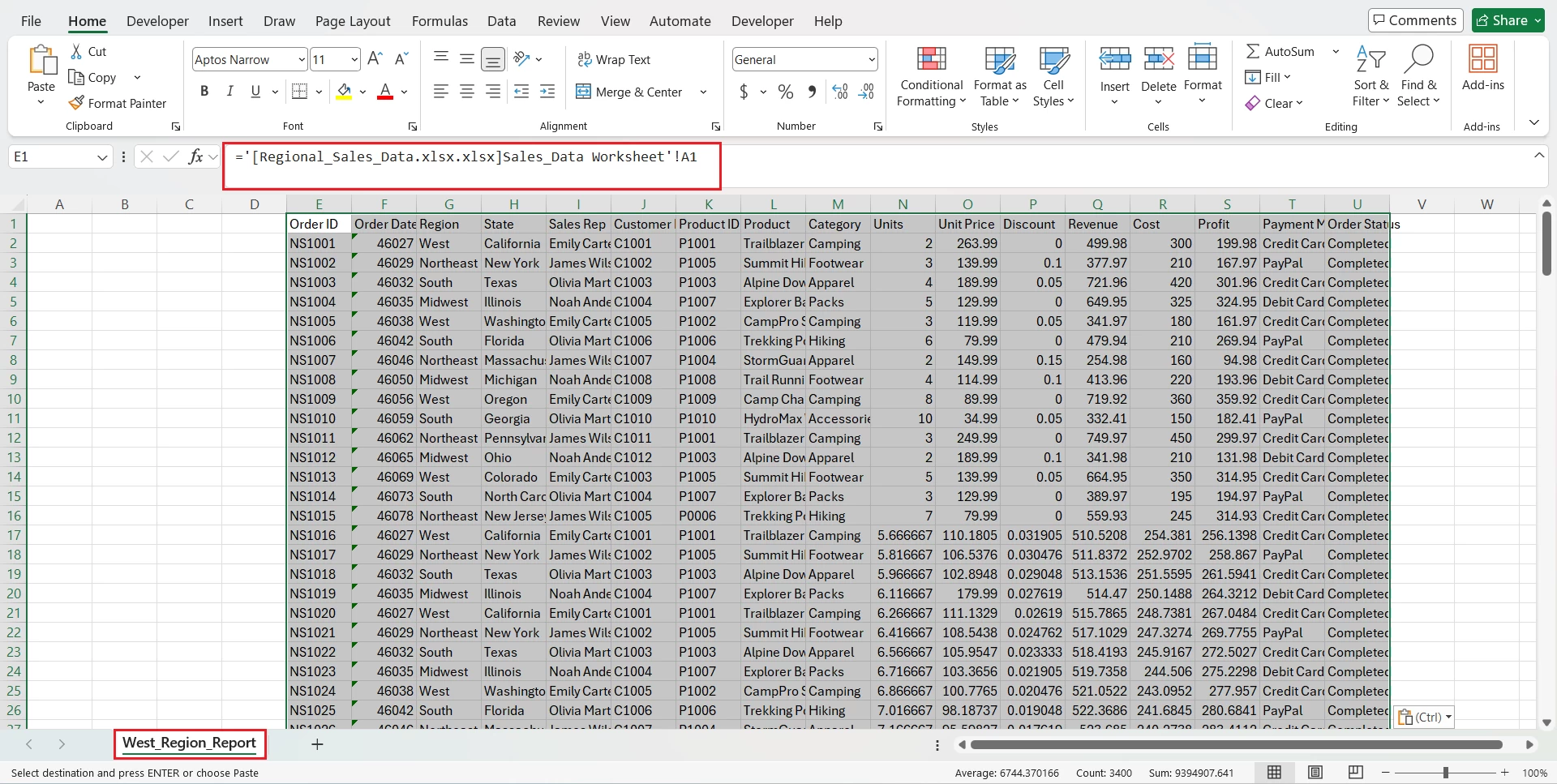
- For example, Select cell K2 on the
Regional_Sales_Data.xlsx
Common Mistake: Select the actual source cell rather than manually typing a potentially incorrect reference.

Step 4: Press Enter
- Press Enter.
- Excel will return you to the destination workbook and create an external reference similar to:
='[Regional_Sales_Data.xlsx.xlsx]Sales_Data Worksheet'!$K$2Common Mistake: Don’t remove the brackets around the workbook name. They are part of Excel’s external reference syntax.
Step 5: Test the Link
- Change the value in the source cell and then check the destination workbook.
- For example, change:
$249.99to$263.99 - Then check whether the linked cell reflects the change.
Common Mistake: If the value doesn’t update, don’t assume the formula is wrong. The external link may not have refreshed, or Excel may be unable to find the source workbook.
How to Link Multiple Cells Using Paste Link
If you need to link a range of cells, Paste Link is often faster than creating individual formulas.
Step 1: Select the Source Range
- In the source workbook, select the cells you want to connect.
- For example:
A2:C10 - Press
Ctrl + C.
Step 2: Open the Destination Workbook
- Go to the workbook where you want the linked data to appear and
- Select the starting cell.
Step 3: Use Paste Link
- Right-click the destination cell and
- Choose Paste Link from the paste options.
- Excel creates references to the original cells instead of making a static copy.
Common Mistake: Don’t choose ordinary Paste if you want the destination to remain connected to the source.
How to Link an Excel Table to Another Workbook
If your source data grows regularly, you may be tempted to link hundreds or thousands of individual cells. Here you can use Excel Tables because they auto-expand when you add new rows or columns, and references remain valid without editing formulas.
Example
- Instead of repeatedly extending a fixed range (
A2:C100), you can organise the source data as an Excel Table(Insert → Table). - Tables are useful when new rows are regularly added to a dataset.
The images below show that when data is entered in Row 6 of the source Table, the linked worksheet also gets updated automatically.
However, do not assume that an ordinary workbook link automatically turns two worksheets into synchronized copies. A workbook link references cells, ranges, or defined names; it isn’t the same thing as creating a complete mirror of a worksheet.
For a small report, ordinary workbook links may be enough but for large datasets that need to be repeatedly imported, filtered, combined, or transformed, Power Query is usually worth considering.
How to Link an Excel Sheet with the Same Format and Formulas
Purpose of a workbook link
A workbook link pulls a value from a cell in another workbook so the destination shows the source value automatically when it updates.
Basic example
='[Sales Data.xlsx]January'!B2This formula retrieves the value from cell B2 on the January sheet in Sales Data.xlsx.
What a link does and what it does not
- Does: Retrieves the value (or formula result) from the source cell and updates that value when the source changes.
- Does not: Copy the source cell’s formatting, column widths, cell formulas, conditional formatting rules, named ranges, or other worksheet features. A linked cell shows the same number or text, not an identical cell object.
When to use each approach
Need identical worksheet (format + formulas + layout)?
Copy the worksheet (right-click the sheet tab → Move or Copy → Create a copy). This duplicates formatting, formulas, and layout but does not keep the copy live with the original.
Need live values that update when the source changes?
Use workbook links (cell references to the other workbook). Links keep values current but not formatting or structure.
Need a repeatable, controlled import or transformation of data?
Use Power Query (Data → Get Data). Power Query imports, transforms, and refreshes data on demand and can be set up as a repeatable process.
How to Automatically Update Linked Excel Workbooks
What workbook links do
A workbook link lets one Excel file show values that come from another file. When the source file changes, the linked workbook can show the new numbers without retyping them.
Example
Sales Data.xlsx ⮕ Monthly Report.xlsx
If Sales Data.xlsx changes from Revenue: $25,000 to $28,000, the linked cell in Monthly Report.xlsx can update to $28,000 automatically.
How updates normally work
- Excel tries to refresh links when a workbook is opened or when the source file is available.
- If the source file is open and saved, the destination workbook usually pulls the latest values.
- If Excel blocks external content or the source file is unavailable, the destination workbook may keep showing the old values.
Quick steps to ensure links update
- Save and close the source workbook after making changes, or open the source before opening the destination.
- When you open a workbook and see a security prompt about external content, enable content if the source is trusted.
- To force an update, go to Data > Edit Links > Update Values in the destination workbook. In Microsoft 365 Go to Data > Workbook Links > Refresh all
- If links still don’t update, check that the source file path hasn’t changed and that both files are accessible (network drives, cloud locations, etc.).
Note: Excel can disable external links for security reasons. If that happens, the destination workbook will continue to show previously retrieved values until links are re-enabled and refreshed.
Can You Link to Another Excel Workbook When It Is Closed?
Yes. When the source workbook is open, a reference might look like:
=[Sales Data.xlsx]January!B2But when the source workbook is closed, Excel may include the complete file path:
='C:\Reports\[Sales Data.xlsx]January'!B2This means that the location of the source file matters. The exact reference depends on where the source file is stored because the link depends on Excel being able to locate the source workbook.
Common problem: If someone moves or renames the source workbook, Excel may no longer be able to locate it.
Excel Link vs. Copy vs. Hyperlink vs. Power Query
Choose the method based on what you’re actually trying to accomplish:
| Your goal | Use |
| Display a few values from another workbook | Workbook link |
| Link a block of cells. | Paste Link |
| Create a recurring summary report. | Workbook links or Power Query |
| Combine or transform large datasets. | Power Query |
| Create a clickable path to another sheet | Hyperlink |
| Make a one-time duplicate. | Copy Worksheet |
The distinction between a workbook link and a hyperlink is especially important. A hyperlink takes you somewhere, whereas a workbook link brings data from somewhere else into your workbook.
Excel Link Not Updating? Try These Fixes
When linked values don’t refresh in Excel, it usually means something has changed in the source file or the connection. Check these common issues:
- Source workbook was moved: If the original file was relocated, Excel can’t find it. Make sure the source file is still in the same folder or update the link.
- Source workbook was renamed: Renaming a file (e.g., Sales Data.xlsx → Sales Data Final.xlsx) breaks the link. Restore the original name or re‑link the file.
- Worksheet name changed: If your formula points to January but the sheet is now January Sales, the link won’t work. Update the formula to match the new sheet name.
- #REF! error appears: This error means Excel can’t find part of the reference anymore. Double‑check the formula to ensure it points to a valid cell or range.
- External links are disabled: Excel may be blocking updates from external sources. Go to Data > Edit Links and check the update settings.
- Used Paste instead of Paste Link: A normal paste creates a static copy. To keep the connection live, use Paste Special > Paste Link.
- Source file isn’t accessible: If the file is on OneDrive, SharePoint, or a network drive, make sure you’re connected and the file is available.
Where You’ll Use This
Monthly reporting: To pull figures like revenue and order counts from separate monthly workbooks into a single management report so that the dashboard updates automatically each month.
Financial reporting: Link key numbers (totals, balances, KPIs) from detailed source workbooks into a consolidated summary or dashboard for faster month‑end close and review.
Team reporting: Maintain a central report that stays connected to departmental workbooks, so each team can update its own file while the master report reflects the latest data.
Key Takeaway
- Use an external reference such as
='[Source.xlsx]Sheet1'!A1to link data from another workbook. - Use
Copy → Paste Linkwhen you need to connect a range of cells quickly. - For large, recurring datasets, consider Power Query instead of maintaining hundreds of workbook links.