
Managing worksheets in Excel may look straightforward until you’re staring at a workbook with dozens of confusing, poorly named tabs. Whether you’re organizing reports, tracking data, or building dashboards, mastering the basics of adding, renaming, and deleting worksheets,including keyboard shortcuts, can save you hours of hassle.
In this guide, you’ll discover practical, time‑saving techniques for managing Excel worksheets, tips that many beginners miss. By the end, you’ll be navigating your tabs with confidence, keeping your files clean, organized, and efficient.
What Are Worksheets in Excel?

A Worksheet is a single tab or sheet inside the workbook, where you can input and analyze the data. Each worksheet is made up of rows and columns that form cells, where all the data is entered, from text to formulas. By default, whenever you open a new Excel file, you start with only one worksheet, with the name Sheet1.
How to Add a Worksheet in Excel
Method 1: Using the Add “+” Button
- Open your Excel workbook.
- Click the “+” icon next to the last worksheet tab at the bottom.
- A new sheet named Sheet (e.g., Sheet2, Sheet3) will be created.
Method 2: Add a Worksheet from the Ribbon
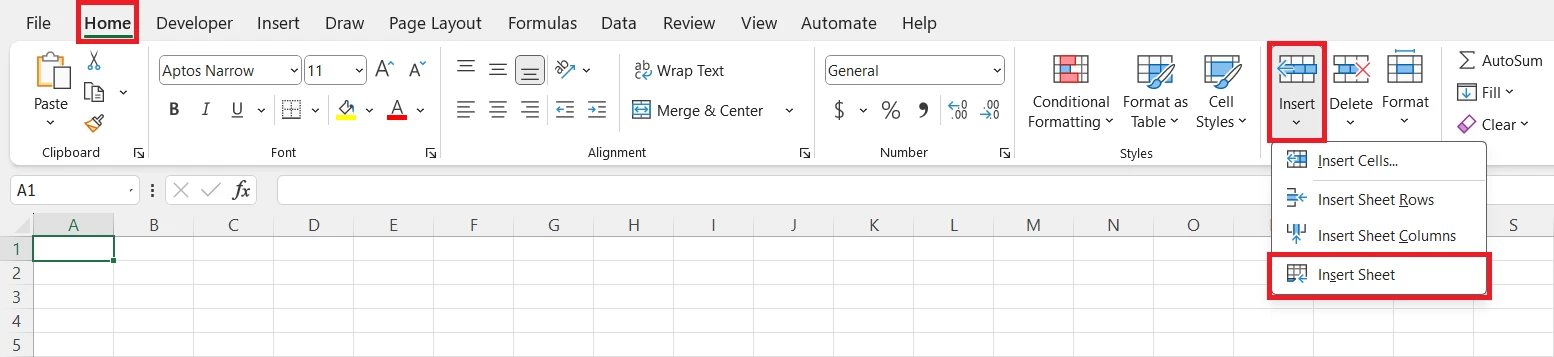
- Go to the Home tab in the Ribbon.
- Clickon Insert → Select Insert Sheet.
Method 3: Insert Sheet via Right-Click Menu
- Right-click on the worksheet tab.
- Select Insert.
- Then select Worksheet from the General Tab.
- Click Ok
Method 4: Keyboard Shortcut to Add Worksheet
- Windows: Press Shift + F11 shortcut to quickly add a new worksheet.
How to Rename a Worksheet in Excel
Method 1: Rename by Double-Clicking the Tab
- Double-click the worksheet tab you want to rename.
- Type the new name.
- Press Enter.
Method 2: Rename Using Right-Click Options
- Right-click the worksheet tab.
- Select Rename.
- Type the desired name and press Enter.
How to Delete a Worksheet in Excel
Method 1: Delete via Right-Click Menu
- Right-click on the worksheet tab you want to remove.
- Select Delete.
Method 2: Delete Using the Ribbon
- Click on the worksheet you want to delete.
- Go to the Home tab.
- Click Delete → Select Delete Sheet.
Essential Keyboard Shortcuts for Worksheet Management
| Add Worksheet | Shift + F11 |
| Rename Worksheet | Alt + H + O + R |
| Delete Worksheet | Alt + H + D + S |
| Navigate Worksheets | Ctrl + Page Up/Down |
Conclusion
Mastering the basics of how to add, rename, and delete worksheets in Excel will make you more efficient and organized. Whether you’re managing a small project or a complex data model, clean worksheet management is key to productivity.
To explore all our posts covering the fundamentals of Excel, please follow this link.