
Are you new to using Excel and struggling with messy worksheets, wrong date formats, or numbers that won’t calculate correctly? It usually comes down to one thing: how data is entered.
In this guide, you’ll learn the fundamentals of Excel data entry the right way, including how to input text, numbers, dates, and time without errors, because knowing how to input datacorrectly saves hours and sets the foundation for powerful analysis. Whether you’re a beginner or brushing up your skills, these simple techniques and shortcuts will help you work faster, avoid common mistakes, and keep your worksheets clean and accurate.
What is Data Entry in Excel?
Data entry in Excel refers to the process of typing, inserting, or importing information into a worksheet so it can be organized, calculated, and analyzed. This information can include text (like names), numbers (such as sales figures), dates, and time values.
In Excel, all data is entered into cells, which are the small boxes formed by the intersection of rows and columns. Each cell can hold a specific type of data, and Excel uses that data to perform calculations, create charts, and generate reports.
For example:
- Entering a list of employee names is text data.
- Adding monthly expenses is numericaldata.
- Recording transaction dates is datedata.
- Entering the working hours of an employee is timedata.
Accurate data entry is important because even small mistakes like typing a number as text or using the wrong date format can lead to incorrect calculations and analysis. In simple terms, data entry is the foundation of working in Excel. Once your data is entered correctly, you can use Excel’s features to sort, filter, analyze, and visualize it effectively.
Understanding Excel Cells
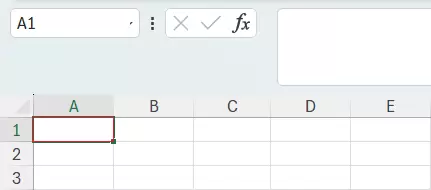
A cell is a block in a worksheet formed by the intersection of a row and a column, and whenever we type anything in a worksheet, the information goes into a cell. Therefore, the cell is where you type your text, numbers, or dates.
How to Enter Text in Excel

Text can be any combination of letters or alphanumeric characters. To enter text in a cell:
- Click the cell and start typing
- Alternatively, press F2 to edit the cell directly or type in the Formula Bar.
- By default, Excel will align text to the left; however, it can be changed through the alignment group.
How to Enter Numbers in Excel
You can enter whole numbers or numbers with decimals, etc. To enter numbers in a cell,
- Click the cell and start typing
- Alternatively, press F2 to edit the cell directly or type in the Formula Bar.
- Excel recognizes numbers and aligns them to the right.
- Numbers can be used for calculations, creating budgets, financial analysis, etc.
- Number Formatting can further be changed using the Format Cells option.
How to Enter and Format Dates in Excel
- Dates are special values which can be filtered, sorted, and time calculations can be performed between two dates.
- To enter a date, type a date like 07/11/2025, 11-Jul-24. Excel will automatically recognize it as a date and format it accordingly.
- Date format can further be changed using the Format Cells option.
How to Enter Time in Excel
- Type time directly into a cell, press Tab or Enter, and Excel will recognize it as a time value.
- By default, Excel takes a 12-hour or 24-hour format depending on system settings. It can be changed using the Format Cells option.
Essential Excel Data Entry Keyboard Shortcuts to Save Time
- Press Tab after entering data to move right
- Hit Enter to move down
- Use the Shortcut Ctrl + ;to insert today’s date and
- To insert current time: Ctrl + Shift + ;
Conclusion: Excel Data Entry Basics
- A cell is the intersection of a row and a column
- Text is any combination of letters, numbers, or symbols that is left-aligned by default, used for labels and names, and cannot be used for calculation.
- Numbers are right-aligned by default and are used in calculations.
- Dates are special values which can be filtered, sorted, and time calculations can be performed.
- Time can be entered directly into a cell, and Excel will recognize it as a time value.
To explore all our posts covering the fundamentals of Excel, please follow this link.