
Are you struggling with Excel cells not updating, or cells refusing to calculate formulas, or showing the formula itself instead of the result? These issues can derail your workflow and make even simple spreadsheets frustrating to use. The good news is that most of these problems have simple fixes. In this guide, you’ll learn how toget your Excel cells updating, calculating, and displaying results correctly in just a few minutes.
If Excel cells are not updating, showing formula instead of the result, or displaying outdated values, the issue is usually caused by manual calculation mode, text-formatted cells, or the Show Formulas option being enabled. Correcting these settings restores automatic formula calculation and ensures accurate results.
Start by pressing F9 to force Excel to recalculate all formulas. Then go to
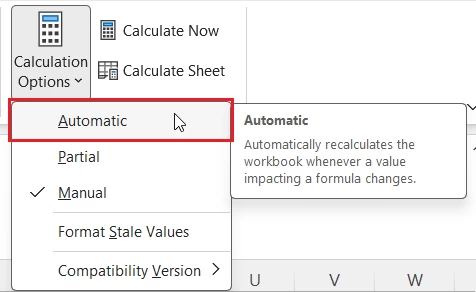
Formulas → Calculation Options → Automatic to enable automatic calculation.
If formulas still don’t calculate, change the cell format from
Text to General, remove any leading apostrophe ('), and press
Ctrl + ` to turn off Show Formulas so Excel displays calculated results instead of formula text.
How to Fix Excel Cells Not Updating
Step 1: Enable Automatic Calculation in Excel
The first thing to check when Excel cells are not updating is the workbook’s calculation mode. Excel can calculate formulas automatically or wait until you manually tell it to recalculate. If the workbook is set to Manual, formulas may continue displaying their previous results after you change an input cell.
To switch back to Automatic calculation mode:
- In the Excel Ribbon, go to the Formulas tab.
- Click on Calculation Options and
- Choose Automatic.
- Change an input value and check whether the formula updates.

Common Mistake: Many users accidentally leave Excel in Manual Calculation after using large workbooks. If the workbook keeps switching to Manual, look for macros or other workbook-specific settings that may be changing the calculation mode.
Step 2: Recalculate the Excel Workbook
If calculation is already set to Automatic, the next step is to force Excel to recalculate. Excel provides several calculation shortcuts, and they do different jobs:
| Shortcut | What it does |
| F9 | Recalculates formulas that Excel determines need recalculation |
| Shift + F9 | Recalculates the active worksheet |
| Ctrl + Alt + F9 | Forces all formulas in all open workbooks to recalculate |
| Ctrl + Shift + Alt + F9 | Rechecks formula dependencies and then recalculates |
For a workbook where formulas appear stuck, start with Ctrl + Alt + F9. If that does not solve the problem, use Ctrl + Shift + Alt + F9. This goes further by rebuilding Excel’s calculation dependency information before recalculating.
Common Mistake: Pressing F9 repeatedly will not fix a formula that Excel is treating as text. If recalculation has no effect, continue to the formula-format checks below.
Step 3: Check If the Formula Is Stored as Text
Another common reason for Excel cells not updating is that Excel is treating the formula as ordinary text, the formula has a leading apostrophe, or there is an unexpected space before the equals sign.
- In the worksheet, click on the affected cell.
- If you see an apostrophe (‘) before the formula or the cell format is in Text format, Excel won’t calculate it.
- Change the format to General, press F2, then Enter.
Common Mistake: Simply changing the format to General does not recalculate existing formulas. You must edit and confirm the formula again.
Step 4: Turn Off the “Show Formulas” Option
If you see formulas throughout the worksheet instead of their calculated results, you may have accidentally enabled Show Formulas.
- You can use the shortcut Ctrl + `to enable or disable the Formulas.
- Or go to Formulas tabthen click on Show Formulas button to enable or disable it.
Common Mistake: Users often enable this shortcut accidentally while typing. Show Formulas does not stop Excel from calculating. It only changes what is displayed in the worksheet.
Step 5: Fix Excel Cells Showing Incorrect Values
If an Excel cell is showing unexpected values you can fix it by:
- Widen the column if you see
#######in the cells. - In the Numbers Group, check the format of the cell and verify date and number formatting are correct.
- Us the
CLEANandTRIMfunctions to remove any hidden spaces or characters from the Cell. - Disable Scientific Notation if needed.
Common Mistake: Formatting issues are frequently mistaken for calculation errors.
If Cells Update Only After Double-Click or Pressing Enter
One particularly frustrating symptom is when an Excel cell updates only after you double-click it or press F2 and Enter.
For example:
- Cell
A1contains10. - Cell
B1contains20. - Cell
C1contains the formula=A1+B1. - You change the value in cell
A1to50and, - Cell
C1continues showing30. - You double-click cell
C1and press Enter. - Value in cell
C1suddenly updates to70.
If this happens, re-entering the formula forces Excel to evaluate it again. However, F2 + Enter is a workaround, not the underlying fix.
Check the following:
- Confirm that calculation mode is Automatic.
- Press Ctrl + Alt + F9.
- Check whether the formula cell is formatted as Text.
- Look for a leading apostrophe or space.
- Make sure Show Formulas is not causing confusion.
If F2 + Enter fixes many formulas individually, avoid manually repeating the process across a large worksheet. Find out why Excel is not evaluating the formulas normally.
Common Mistake: Do not assume that because F2 + Enter works, every formula needs to be manually re-entered. The behavior is a clue that something else needs checking.
What to Do When Automatic Calculation Is Already On
If you have already confirmed that Excel is set to Automatic but the cells still show old results, follow this order:
- Force a full recalculation with Ctrl + Alt + F9.
- If necessary, use Ctrl + Shift + Alt + F9 to rebuild dependencies and recalculate.
- Check whether the formula is stored as text.
- Check Show Formulas.
- Enter a simple test formula such as
=1+1in an empty cell. - Determine whether all formulas or only certain formulas are affected.
- Test the same formula in a new workbook.
- If the new workbook works, investigate the original workbook, VBA, add-ins, or possible workbook-specific problems.
This gives you a logical troubleshooting path instead of repeatedly trying F9 and hoping something changes.
Advanced Fixes for Excel Cells Not Updating
If none of the above steps work try below Advanced Fixes:
Check Whether a Macro Is Switching Calculation to Manual
If the problem appears after running a macro, inspect the workbook’s VBA code. VBA can change Excel’s calculation mode. A macro may temporarily use Manual calculation to improve performance while processing a large amount of data, but an error can prevent it from restoring the original setting.
If Excel repeatedly returns to Manual calculation after a macro runs, this is an important clue.
If you do not manage the VBA code yourself, ask whoever created the workbook to check whether the macro changes Application.Calculation.
Copy All Worksheets to a New Workbook
Moving worksheets into a fresh workbook removes hidden corruption or problematic workbook level settings. A new workbook is a useful diagnostic tool.
Enter:
A1 = 10B1 = 20C1 = =A1+B1- Then change
A1to50.
If C1 immediately becomes 70, Excel’s basic calculation is working. The problem is more likely connected to the original workbook. This test helps separate an Excel-wide problem from a workbook-specific problem.
Open Excel in Safe Mode
Safe Mode starts Excel without add-ins, customizations, or extensions. This helps you tell whether the problem is caused by something extra that loads with Excel.
- Close Excel.
- Press Windows key + R, type excel /safe, and press Enter.
excel /safe- If the file opens and works normally in Safe Mode, the issue is likely caused by an add-in or a custom setting. If the problem still appears, move to the next step.
Disable COM Add-ins
COM add-ins are small programs that extend Excel. A faulty add-in can cause crashes, slow performance, or errors.
- Open Excel in the normal mode.
- Go to File > Options > Add-ins.
- At the bottom, next to Manage, choose COM Add-ins and click Go.
- Uncheck all add-ins and click OK.
- Restart Excel and try your workbook.
- If disabling add-ins fixes the issue, re-enable them one at a time to find the culprit.
Conclusion
- Most of the time Excel cells not updating problems are caused by Calculation options set to Manual, or cells formatted as Text, or Show Formulas is enabled.
- Always verify Calculation Options before troubleshooting complex workbook issues.
- If one of the workbook remains problematic, repair it or copy the data into a new workbook.