
Have you ever struggled with text spillingout of cells, awkward spacing, or poorly aligned content? Messy spreadsheets don’t just look bad; they make your data harder to read, understand, and trust. The solution lies in mastering cell alignment and orientation in Excel and knowing how to align and orient text properly so you can transform your worksheet from cluttered to professional. In this guide, you’ll learn how to perfectly position your data, control text flow, and format cells with precision, whether you’re building reports, dashboards, or everyday spreadsheets.
Introduction to Cell Alignment in Excel
- Cell alignment in Excel refers to how text and numbers will be positioned or how your data will appear inside each cell. Excel provides multiple alignment options, which can be accessed via the Ribbon or Format Cellsdialog box.
- There are 2 types of Alignment in Excel: Horizontal and Vertical Alignment.
Horizontal Alignment in Excel
- Horizontal alignment in Excel determines how text, numbers, etc., are positioned from left to right within a cell. For Horizontal alignment, you will find the following options in the Alignment group in the Excel Ribbon.
- Go to Home → Alignment and choose one of these options:
Align Left
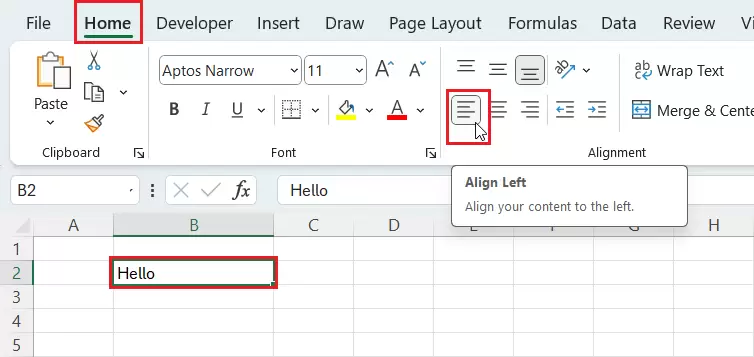
- Aligns content in the cell to the left edge of the cell. This is the default alignment for text.
Center

- This centers the content within the cell.
Align Right
- Aligns content to the right edge inside the cell. This is the default alignment for numbers.
Use Format Cells for AdvancedHorizontal Alignment
Fill
- Selecting this option will repeat the content to fill the width of the Cell. If you increase the width of the cell, then the content within the cell will keep on replicating.
Justify
- Justify will distribute the text evenly across the width of the cell.
Center Across Selection:
- It will center the text across multiple cells without merging.
Distributed:
- It evenly spaces the words within a cell so that the first word aligns with the left edge and the last word aligns with the right edge, even when the cell is resized.
The available options can behave differently depending on the cell contents and selected settings.
Common Mistake: Choosing Merge & Center when you only need to center a heading across several columns. Center Across Selection may preserve a more useful worksheet structure.
Vertical Alignment in Excel
- Vertical Alignment determines how the content will sit from top to bottom inside a cell.
- In the Excel Ribbon, you will find the following options for Vertical Alignment in the Alignment group:
Top Align
- This will align content to the top of the cell.
Middle Align
- It centers content vertically.
Bottom Align
- It will align content to the bottom of the cell.
Use Format Cells for Advanced Vertical Alignment options
Justify
- In Vertical Alignment when a cell is tall, selecting ‘Justify’ automatically wraps the text and distributes it evenly from top to bottom.
Distributed
- This option spaces out lines evenly, including the last line in the Cell.
How to Align Cells in Excel (Step-by-Step)
- Select the cells you want to align.
- Go to the Home tab.
- Use the Alignmentgroup to set your desired horizontal and vertical alignment, wrap text, or change orientation.
- Alternatively, to use more advanced options, click on the diagonal arrow at the bottom right corner of the alignment group to enter Format cells.
- Then click on Alignment for more options
Text Control Options in Excel
Wrap Text
- It makes content appear on multiple lines within a cell.
Merge Cells
- It will combine multiple cells into one larger cell. This feature works horizontally across the selected columns and vertically down the selected rows.
Merge Across
- This feature works horizontally across selected columns and allows you to combine cells across columns in each row.
Merge & Center
- Merges all selected cells into one big cell and centers the content.
Unmerge Cells
- Unmerge Cells splits merged cells back into original individual cells.
AutoFit Column Width
Select the relevant columns and choose Home → Cells → Format → AutoFit Column Width. You can also double-click a column boundary to AutoFit it. Excel adjusts the column width to accommodate the contents.
Text Control option available through Format Cells
Shrink to Fit
- Shrink to Fit is a text formatting option that automatically reduces the font size of a cell’s content so that it fits within the cell’s width without changing the cell size or wrapping the text.
Working with Cell Orientation
The Orientation feature in Excel lets you rotate or angle text inside a cell for better layout, space‑saving, or design. It is helpful in narrow columns.
- Angle Counterclockwise: Tilts text upward
- Angle Clockwise: Tilts text downward
- Vertical Text: Stacks letters vertically, one character per line.
- Rotate Text Up: Rotates text up 90°
- Rotate Text Down: Rotates text 90° down
How to Set Text Angle
- Select the cell(s).
- Go to Home → Alignment group → Orientation Button.
How to Set a Custom Text Angle
- Use Format Cells to set a custom angle.
- Press Ctrl+1 or right-click on the cell to open Format Cells.
- Then go to the Alignment tab.
- In the Orientation section, drag the red indicator or type an exact degree value.
- Click OK.
Summary
- Horizontal Alignment in Excel determines how text, numbers, etc., are positioned from left to rightwithin a cell.
- Vertical Alignment determines how content sits top-to-bottom inside a cell.
- The Orientation feature lets you rotate or angle text inside a cell for better layout, space‑saving, or design. It is helpful in narrow columns.
To explore all our posts covering the fundamentals of Excel, please follow this link.