
Are you struggling with Excel Dates Not Sorting Oldest to Newest,or when you click on the Sort Oldest to Newest option, and expect everything to fall into place, but still the dates remain out of order or end up sorted incorrectly? This usually happens because Excel doesn’t recognize the entries as real date values; instead, it treats them as text.
Fortunately, it’s a very common problem that has a quick and easy fix. In this guide, you’ll learn how to identify the issue and get your dates sorted correctly in just a few minutes.
If your Excel dates are not sorting correctly, they are most likely stored as text values instead of real dates. The fastest way to fix this is to convert the text into actual Excel date values using the DATEVALUE function.
Enter the following formula in a new column to convert the text date into a valid Excel date, then copy the formula down for the remaining cells:
=DATEVALUE(A1)
How DATEVALUE works:-
- DATEVALUE converts a text-formatted date into a true Excel date value.
- A2 is the cell containing the problematic date.
After applying the formula:
- Select the cell in the new column and enter the formula.
- Drag it down for all rows.
- Select all the cells to which the formula was applied, then
- Copy the results and paste as Values.
- Now try to sort using Oldest to Newest.
When this formula fails:
The DATEVALUE formula may not work:
- On dates using inconsistent formats. For example, in some cells, dates are in the DD/MM/YYYY format, whereas in other cells, the format is MM/DD/YYYY.
- Cells which contains extra spaces.
- On dates which include text like “January 5th, 2025”.
- If regional settings differ (e.g., DD/MM/YYYY vs MM/DD/YYYY).
When NOT to use this formula
Don’t use the DATEVALUE formula if Excel already recognizes the data as real dates. In that case, the problem may be caused by hidden spaces, merged cells, or mixed data types.
Fix Excel Dates by following below steps
Step 1: Check whether Excel Sees the Date as Text
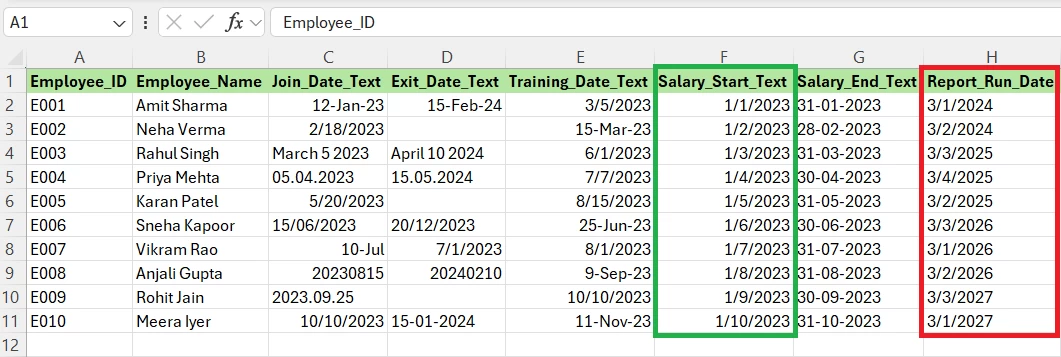
- If dates are left-aligned by default, Excel is likely treating them as text, and the date needs to be converted.
Common Mistake
Many users assume that just because a value looks like a date, Excel will automatically recognize it as one, which is not the case.
Step 2: Convert Text Dates into Real Dates
- Enter the formula below in a blank column:
=DATEVALUE(H2)
- Press Enter and fill the formula down.
- Text will be converted to numbers, then
- Go to the Home Tab in the ribbon
- Select short dates from Numbers Format.
- This changes numbers to Dates
Common Mistake
Most people forget to format the result column as Dates after conversion.
Step 3: Replace the Original Data
- Copy all the converted date cells.
- Right-click.
- Select Paste Special and choose Values from the Paste options.
- Then click OK.
Common Mistake
Copy and paste normally instead of values, which leaves formulas in place. If you leave formulas, sorting may break when rows shift.
Step 4: Sort Oldest to Newest
- Select your data range.
- Go to Data, then select Sort from the Sort & Filter group.
- In the column, select the Column Heading you want to sort.
- Then, in order, choose Oldest to Newest.
Common Mistake
Sorting only one column instead of the entire dataset. Make sure the entire data range is selected.
Step 5: Excel Dates Still Not Sorting
Sometimes Excel refuses to sort Dates correctly, even after the conversion.
Check for any Hidden Spaces in the cells
Use the below TRIM formula to remove any hidden spaces:
=TRIM(A2)Then convert using the DATEVALUE formula:
=DATEVALUE(TRIM(A2))Check for Apostrophes
Cells which are imported from CSV files often contain dates with the apostrophe:
'01/05/2025The apostrophe at the beginning of the date forces Excel to treat the value as text instead of a date. Remove the apostrophe and try to convert again.
Dates Mixed with Time Values
These may appear identical while sorting differently. Example:
01-Jan-2025 14:30To extract only the date, use the following formula:
=INT(A2)Real Use Cases
Scenario 1: Sales Report Dates are Out of Order
A sales manager imports transaction data from a CRM system. Although the dates appear correctly, Excel stores them as text. When sorting, “12/01/2025” appears before “02/01/2025.” Here, using the DATEVALUE formula instantly fixes the issue.
Scenario 2: Project Timeline Won’t Sort
A project coordinator collects and combines data from multiple team members, but some of the dates are entered manually while others are imported because the date formats are mixed, and Excel dates not sorting becomes a recurring problem. Converting everything into a standard date format resolves the timeline.
Scenario 3: Exported CSV File has Broken Dates
After opening a CSV file, all dates are treated as text. Sorting produces random-looking results. Using Text-to-Columns or DATEVALUE converts the data into proper Excel dates.
Conclusion
When Excel dates do not sort from oldest to newest, the root cause is usually that Excel is reading the dates as text instead of actual date values.
The fastest fix is:
- Use
=DATEVALUE(A1) - Convert results to values
- Sort again
If Excel dates are not sorting even after that, check for inconsistent formats, hidden spaces, imported CSV data, or mixed date and text entries. Once Excel recognizes every entry as a true date value, sorting from oldest to newest works exactly as expected.
Even after following all the mentioned steps, dates are not sorting, or you still have problems with Excel Dates or Pivot Table dates, you might have to apply different formulas or methods to fix Excel Dates.