
What if you could add hundreds of numbers in a spreadsheet with just one click? Excel makes it easy to calculate totals without manually writing formulas. With AutoSum in Excel, you can quickly add numbers in a column or row and let Excel automatically create the required SUM formula. Whether you’re working with a small table or hundreds of entries, AutoSum can save time and reduce calculation errors.
In this guide, you’ll learn how to use AutoSum in Excel, how Excel determines which cells to add, and the AutoSum shortcut (Alt + =). We’ll also explore the options available from the AutoSum button, including Average, Count Numbers, Max, and Min, along with examples for totaling multiple rows and columns.
AutoSum is the fastest way to calculate the sum, average, count, maximum, or minimum of a range in Excel. Simply select the cell where you want the result, click AutoSum (∑) on the Home or Formulas tab, and press Enter to insert the formula automatically.
For even faster calculations, use the keyboard shortcut
Alt + =. Excel automatically selects the adjacent data
range and inserts the appropriate SUM() formula, saving
you time which would have been spent typing the formula manually.
Alt + =. Excel inserts SUM() formulas for all selected ranges at once.What Is AutoSum in Excel?
AutoSum in Excel is a built-in feature that automatically inserts the SUM formula to add up a range of numbers. Instead of typing =SUM(A1:A10) manually, you can use AutoSum to do it instantly.
This is especially useful when you’re working with large datasets, financial reports, or data analysis tasks where totals are frequently calculated.
How to Use the AutoSum Formula in Excel
Here’s is the step by step instructions to use the AutoSum formula in Excel:
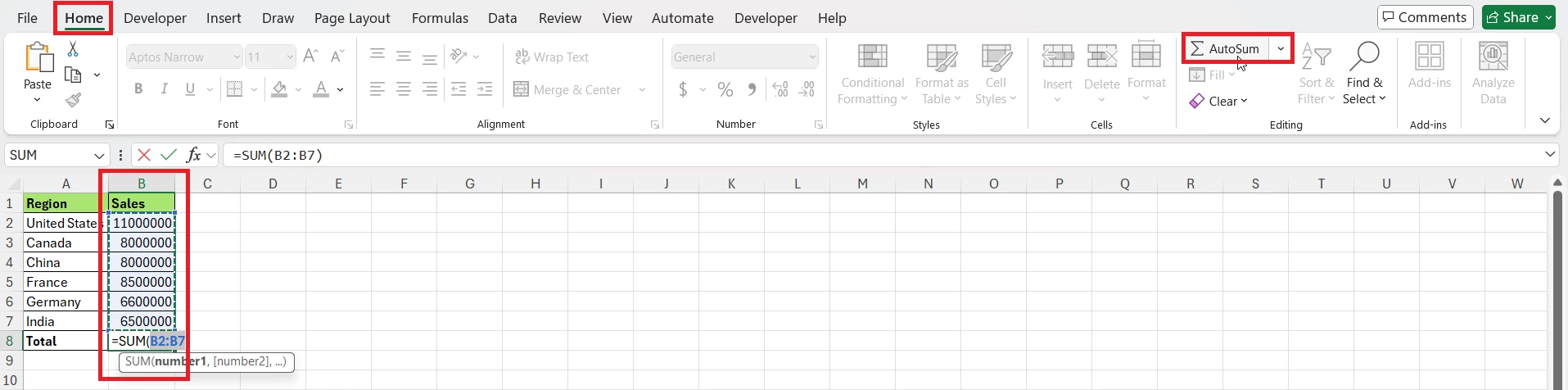
- Select the cell where you want the total to appear.
- Click on the Home tab.
- In the Editing group, click AutoSum (Σ).
- Excel will automatically select the range of numbers it thinks you want to sum.
- Press Enter, and your total appears instantly.
This is the basic Excel column sum formula; it is perfect for quickly totaling any column or row of data.
How Excel decides what AutoSum should add
When you click the AutoSum (Σ) button or shortcut, Excel tries to guess the most likely contiguous numeric range to sum based on the active cell’s position and nearby numbers. It prefers contiguous blocks in the same row or column, stops at blanks or nonnumeric cells, and uses worksheet structure (tables, formulas, headers) to refine the guess.
For example:
| B2 | 125000 |
| B3 | 187500 |
| B4 | 152000 |
| B5 | |
| B6 | 213000 |
| B7 | 168500 |
If you use AutoSum below this data, Excel may select only the numbers immediately above the blank rather than the entire list. Always check the highlighted range before pressing Enter. If Excel selects the wrong cells, edit the formula directly.
For example, manually change: =SUM(B6:B7) to: =SUM(B2:B7)

AutoSum Shortcut in Excel
You can also use a keyboard shortcut to quickly apply the AutoSum in Excel.
- In Windows, use
Alt + = - For Mac,use
Command + Shift + T
When you press this shortcut, Excel automatically inserts the =SUM() function and highlights the most likely range of cells. Simply hit Enter to confirm.
Features in the AutoSum Button in Excel
When you click the AutoSum button, Excel doesn’t just add numbers; it also gives you several other options to perform different types of quick calculations. Below are some of these:-
Average
If you click the dropdown next to the AutoSum button, you’ll find the Average option.
- This inserts the
=AVERAGE()function. - It calculates the mean value of the selected cells.
Example: =AVERAGE(B2:B7)
Count Numbers
This option inserts the =COUNT() formula.
- It counts how many cells in the range contain numeric values (not blank or text).
Example: =COUNT(B2:B7)
Max
The Max option applies the =MAX() function.
- It finds the largest number in a selected range.
- Perfect for identifying the highest sales, marks, or performance figures.
Example: =MAX(B2:B7)
Min
The Min option applies the =MIN() function.
- It finds the smallest number in the selected range.
- Great for spotting minimum scores, lowest prices, or smallest values in the selected range.
Example: =MIN(B2:B7)
How to AutoSum Multiple Rows and Columns
You can use AutoSum for several rows or columns at once.
To total a Single Column
- Select the cell directly below the numbers you want to add (for example, select B11 if your numbers are B2:B10).
- Click AutoSum (Σ) on the Home or Formulas tab.
- Check the highlighted range that Excel suggests (it will show something like
=SUM(B2:B10)). - Then Press Enter to accept the formula.
- You can also type the formula yourself:
=SUM(B2:B10)
To total several adjacent columns at once
- Select the empty cells directly below each column you want to total (for example, select B11:D11 to sum columns B, C, and D).
- Click AutoSum (Σ). Excel will insert a SUM formula into each selected cell.
- Press Ctrl + Enter to enter the formulas into all selected cells at once (this keeps each formula in its own cell).
Alternatively, you can also enter the first formula (e.g., =SUM(B2:B10) in B11), then drag the fill handle (small square at the cell corner) across to copy the formula to the right. Excel will automatically adjust column references (relative referencing).
To total a row or multiple rows
- Single row: Select the cell to the right of the numbers and click AutoSum (Excel suggests something like
=SUM(A1:F1)). - Multiple rows: Select the empty cells to the right of each row, click AutoSum, then press Ctrl + Enter or fill across with the fill handle.
Example Formulas
- Sum a single column: =SUM(A1:A10)
- Sum two columns together: =SUM(A1:A10, B1:B10)
- Sum an entire row: =SUM(1:1)
Conclusion
Mastering the AutoSum feature in Excel along with its shortcuts can dramatically speed up your workflow. Whether you prefer clicking the AutoSum button or using the AutoSum Excel shortcut (Alt + =), you will save your valuable time while ensuring your calculations are accurate.
Next time, when you open Excel, try using the AutoSum shortcut and see how much faster you can work!
If your SUM formula is returning an unexpected result or #N/A Errors, check for common formula mistakes in Excel before changing the formula. To explore all our posts covering the fundamentals of Excel, please follow this link.