
Have you ever copied a formula in Excel only to find out that the results suddenly change? That’s because Excel uses different types of cell references– absolute, relative, and mixed- that determine how formulas behave when moved across rows or columns. Understanding these references isn’t just about preventing errors; it’s the key to building flexible, reliable spreadsheets that save you time.
This guide shows you how to use relative, absolute, and mixed cell references so you can copy formulas confidently and avoid common Excel errors.
Excel cell references can be relative, absolute, or mixed. The $ symbol keeps a row or column fixed when you copy a formula.
| Reference | Result |
|---|---|
A1 |
Row and column change |
$A$1 |
Row and column stay fixed |
$A1 |
Column stays fixed |
A$1 |
Row stays fixed |
F4 while editing a cell reference to cycle through relative, absolute, and mixed references.
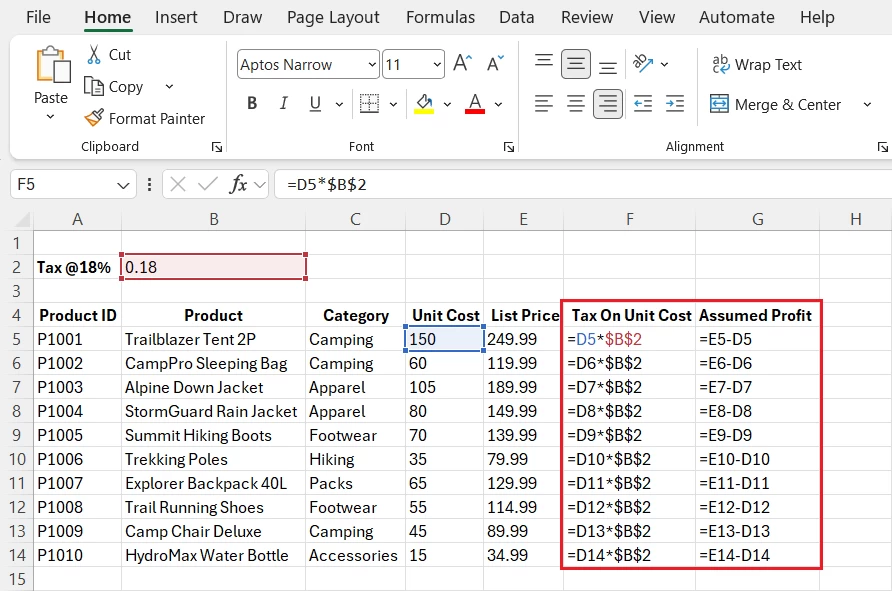
If B2 contains an 18% tax rate:
=D5*$B$2
When copied down, D5 changes to D6,
D7, and so on, while $B$2 stays fixed.
What is a Cell Reference in Excel?
A cell reference in Excel is how you refer to the location of a cell in a worksheet. To understand cell references better, let’s consider an example:
=A1 + B1The above formula adds the values of cells A1 and B1. Here, A1 and B1 are cell references.
The important part is that Excel can automatically change a reference when you copy a formula. Whether it changes depends on whether the reference is relative, absolute, or mixed.
The 3 Types of Cell References in Excel
| Type | Example | When copied |
| Relative | A1 | Row and column change |
| Absolute | $A$1 | Nothing changes |
| Mixed | $A1 | Column stays fixed |
| Mixed | A$1 | Row stays fixed |
Think of the $ symbol as a lock.
$A$1→ lock column and row$A1→ lock column onlyA$1→ lock row onlyA1→ don’t lock anything
Relative Cell Reference
- A relative reference changes when the formula is copied to another cell.
- For example, if you write
=B2+C2in cellD2and then copy it to cellD3, it will change to=B3+C3and so on. This is the default behaviour in Excel.

Use relative references when you want Excel to automatically adjust the formula for each row or column.
Absolute Cell Reference
- An absolute reference does not change when copied. The dollar sign
$is used to lock the row or column. - An Example of an Absolute Cell Reference is
=$B$2+$C$2, which will always refer to cellB2+C2, no matter where you copy the formula.
Use absolute references for fixed values such as tax rates, discounts, commission rates, or conversion factors.
Mixed Cell Reference
A mixed reference locks either the row or the column, but not both.
Examples of Mixed Cell Reference
=$B2locks the column (B) but not the row. When copied across columns, the reference to column B remains fixed, but when copied down, the row number updates relative to its new position.=B$2locks the row (2) but not the column. Therefore, when copied to another cell, the row remains fixed, while the column changes based on the new position.
$A1 vs. A$1
The easiest way to remember the difference is to look at where the $ appears.
| Reference | Locked | Changes |
$A1 | Column A | Row |
A$1 | Row 1 | Column |
For example, copying $A1 down produces:
$A1
$A2
$A3
The column remains A while the row changes.
Copying A$1 across produces:
A$1
B$1
C$1
The row remains 1 while the column changes.
How Excel Cell References Change When You Copy a Formula
This is the easiest way to understand cell references.
| Reference | Copy Down | Copy Right |
A1 | A2 | B1 |
$A$1 | $A$1 | $A$1 |
$A1 | $A2 | $A1 |
A$1 | A$1 | B$1 |
The rule is simple: Lock what should stay the same. Leave unlocked what should move.
Example of copying down
Suppose you calculate sales totals in column D:
=B2*C2Copy the formula down, and Excel automatically creates:
=B3*C3
=B4*C4
=B5*C5
That’s exactly what you want when every row contains a different product.
Now imagine your tax rate is always stored in F1:
=B2*C2*$F$1When copied down:
=B3*C3*$F$1
=B4*C4*$F$1
The product references move, but the tax rate doesn’t.
Common Mistake: Don’t assume every reference should be absolute. If you write:
=$B$2*$C$2and copy it down, both references remain fixed. Every row will calculate using the same two cells.
Excel Cell Reference Shortcut: Using F4
You don’t have to type $ manually every time. While editing a formula, select the cell reference and press F4 to cycle through the reference options.
Starting with:
A1F4 cycles through:
$A$1
A$1
$A1
A1
Why F4 is useful
Suppose you type:
=B2*F1You want F1 to remain fixed. Select F1 in the formula and press F4:
=B2*$F$1You can press F4 again if you need a mixed reference instead.
Common Mistake: Pressing F4 without first selecting or positioning the cursor on the reference you want to change may not produce the reference format you expect.
Keyboard tip: On some laptops, you may need to use Fn + F4 depending on your keyboard settings.
Referencing Cells in Another Worksheet
In Excel, you can reference a cell or a range from another worksheet by including the sheet name in your formula.
- To reference a cell from another sheet, use this format:
=Sheet2!A1. - This uses the value from cell
A1onSheet2. - The image above contains formula
=Jan!B2+Feb!B2+March!B2. - This formula adds the value in cell
B2in the Worksheet Annual Summary from the Jan, Feb, and March Worksheets.
A1 vs. R1C1 Reference Style
Most Excel users work with A1-style references, such as:
A1
B5
D10
Excel also supports R1C1-style references, which use numbers for both rows and columns. For example:
- A1 style: B5
- R1C1 style: R5C2
Here:
- R5 means row 5.
- C2 means column 2.
R1C1 can also express relative positions. For example:
R[-1]Cmeans one row above the current cell in the same column.
For normal spreadsheet work, A1 notation is usually easier to read. R1C1 becomes more useful in advanced formula work and macros.
Common Mistake: Don’t confuse R1C1 notation with another type of cell reference behaviour. R1C1 is a reference style, while relative, absolute, and mixed references describe how references behave when formulas are copied.
Best Practices
- Use F4 when editing a formula; pressing F4 toggles through the reference types (relative → absolute → mixed).
- Before applying a formula to multiple rows, test it in 2–3 cells to make sure references behave as expected.
- When using fixed references for important values, consider locking or protecting those cells.
Key Takeaway
- A1 moves, $A$1 stays fixed, $A1 locks the column, and A$1 locks the row.
- When copying a formula, lock the part of the reference that should not move.
- Use F4 to quickly switch between relative, absolute, and mixed references instead of typing $ manually.
To explore all our posts covering the fundamentals of Excel, please follow this link.