
Scrolling through dozens of identical Excel tabs can feel like searching for a needle in a haystack. When every worksheet looks the same, managing multiple sheets quickly becomes messy and inefficient. That’s why learning to Color-Code and Group Tabs in Excel Worksheets is a game-changer. By assigning colors to tabs and grouping worksheets, you can instantly spot the sheet you need, update multiple tabs at once, and keep your files organized.
In this guide, you’ll discover how to add and remove tab colors, group and ungroup worksheets, and apply best practices to maintain clean, efficient Excel workbooks.
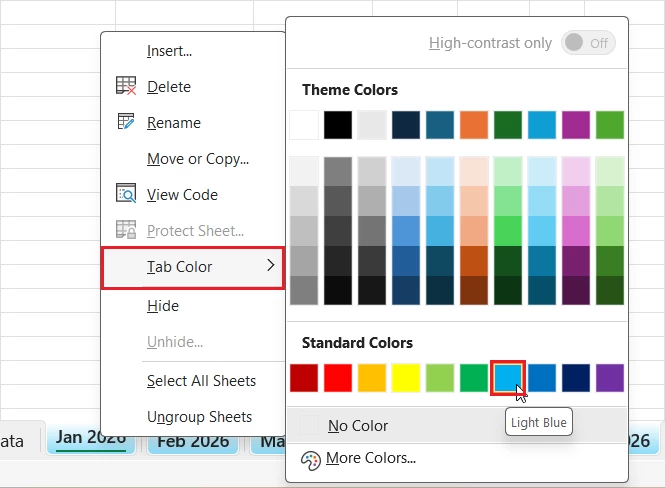
Method: Right-click a worksheet tab → Tab Color → choose a color.
What it does: Changes the worksheet tab color so related sheets are easier to identify.
Result: You can quickly distinguish categories such as monthly reports, source data, calculations, and dashboards.
Method: Select multiple worksheet tabs using Shift-click for adjacent sheets or Ctrl-click for non-adjacent sheets, then work on the selected worksheets together.
What it does: Lets you make supported changes across multiple selected worksheets at the same time.
Result: You can avoid repeating the same task on several similarly structured sheets.
Why Use Color-Coding and Grouping in Excel?
As your Excel files grow, poor organization can lead to mistakes, wasted time, and frustration. Without a clear structure, it becomes difficult to locate information, track changes, or maintain consistency across worksheets. Organizing your worksheets with color-coding and grouping offers several benefits:
- Visually distinguish related worksheets and create a clean, structured workbook layout.
- Speed up navigation in large workbooks and quickly find the right sheet using colors.
- Group similar data sets (e.g., months, departments) and apply changes to multiple sheets at once using grouping.
- Reduce errors and the risk of editing the wrong worksheet by organizing tabs logically.
How to Color-Code Worksheet Tabs in Excel
Color-coding tabs allows you to visually categorize and organize your workbook.
How to Add Color to Excel Tabs
- Right-click the tab you want to color. Example: Right-click on the Jan worksheet tab.
- Select Tab Color.
- Select your desired color from the palette. Here I am choosing light Blue.
- Repeat for the other monthly worksheets or select multiple worksheets first and apply the color to them together.
- When a tab is inactive, it displays its full color. When selected, the tab color appears faded, and a colored underline is shown beneath the tab.

- Common Mistake: Don’t confuse Tab Color with cell fill color. Tab Color changes the worksheet tab, not the cells inside the worksheet.
Color Multiple Excel Tabs at Once
For example, suppose Jan through Jun are all monthly reports.
- Click the Jan tab.
- Hold Shift and click the Jun tab.
- The Selected Tabs change appearance to show they are linked.
- Right-click one of the selected tabs.
- Select Tab Color.
- Choose Light Blue.
- Click a single worksheet when you’re finished to leave the grouped selection.
Common Mistake: Selecting several worksheets also puts them into a grouped state. Don’t start editing worksheet data while they’re selected unless you intend the change to apply across the group.
How to Remove or Change Tab Color
- Right-click the colored tab.
- Go to Tab Color
- Click No Color to remove color from Tab.
How to Group Worksheet Tabs in Excel
Grouping worksheets lets you make changes across multiple sheets at once. It’s perfect for updating layouts or formatting. For example, if there are worksheets named Sheet1, Sheet2, Sheet3, and Sheet4, and you group Sheet1 and Sheet4, any changes made in one of the grouped sheets will be reflected in the other. For instance, if you enter text in Sheet1, the same text will appear in Sheet4. Similarly, if you apply cell formatting such as “All Borders” in one sheet, it will automatically be applied to the other as well.
How to Group Selected Worksheets
- Click the Jan worksheet tab.
- Hold Shift key
- Then click on the Jun worksheet tab
- Excel selects all worksheets between those tabs.
- The grouped tabs will appear white.
- Now, any edits like formatting or formulas will apply to all grouped worksheets.
Common Mistake: Don’t assume grouping creates a permanent category. The worksheets are still separate; Excel is simply treating the selected worksheets as a group for supported operations.
Group Non-Adjacent Worksheets
You can also group worksheets that aren’t next to each other. For example, suppose you only want to work with Jan, Mar, and Jun.
- Select the Jan tab.
- Hold the Ctrl key.
- Select Mar.
- Select Jun.
- Then release the Ctrl key. The selected worksheets are now grouped.
Common Mistake: Don’t accidentally select an extra worksheet. Every selected sheet becomes part of the group and may receive the changes you make.
How to Group All Worksheets
- Right-click any worksheet tab
- Select All Sheets to group all tabs at once.
- Make the required change.
Common Mistake: Avoid using Select All Sheets for data-entry tasks unless you specifically want the change applied to every worksheet.
How to Ungroup Worksheets
When the multi-sheet task is complete, immediately remove the grouping.
- Right-click any grouped tab and choose Ungroup Sheets, or
- Simply click on a tab outside the group
You can then continue working with individual worksheets normally.
Common Mistake: Forgetting to ungroup sheets is one of the easiest ways to make unintended changes to multiple worksheets.
Can You Group Excel Tabs into a Folder?
No. Excel’s worksheet grouping feature does not create folders for worksheet tabs. For example, you cannot natively turn this:
Jan | Feb | Mar | Apr | May | Jun
into a collapsible structure such as: Monthly Reports ▼ with the six worksheets hidden underneath it. If your real problem is navigation, create a Dashboard or Index worksheet instead. For example:
| Category | Worksheet |
| Monthly Reports | Jan |
| Monthly Reports | Feb |
| Monthly Reports | Mar |
| Monthly Reports | Apr |
| Monthly Reports | May |
| Monthly Reports | Jun |
| Source Data | Raw Data |
| Calculations | Calculations |
You can add hyperlinks from the Dashboard to each worksheet. This gives you a practical alternative to a folder system without confusing it with worksheet grouping.
What grouping actually does
- Selecting (grouping) multiple sheets links them for simultaneous edits, formatting, printing, and some other operations.
- Grouping does not hide sheets, create a parent folder tab, collapse/expand a set of sheets, or merge sheets.
Unsupported Actions in Grouped Worksheets
- If the data has been converted into a table, you won’t be able to insert or delete rows or columns across grouped worksheets.
- You won’t be able to create or Modify Charts; the options in the Ribbon will be greyed out.
- Sorting and Filtering Data only works on the active sheet, even when others are grouped.
- Copying and Pasting Across sheets only works on the active sheet, even when others are grouped.
How to Use Color Coding and Grouping Together
The most useful workflow is to combine both features. Imagine you’re managing a monthly sales workbook.
First, color-code the workbook
Use a simple system:
- Purple: Dashboard
- Sales Data: Raw Data
- Blue: Monthly reports
- Orange: Calculations
- Dark gray: Archive
Now you can identify the purpose of each worksheet without opening it.
Next, group similar worksheets
Suppose all six-monthly worksheets have the same layout.
- Select:
Jan → Feb → Mar → Apr → May → Jun - Then make the formatting change you need.
- For example, you could apply the same number format, page setup, or formatting adjustment to all selected monthly sheets.
Finally, ungroup them
- Once the common change is complete, select Ungroup Sheets. Below is the safest workflow approach:
Color → Group → Make the shared change → Ungroup.
Common Problems with Grouped Excel Tabs
Why did my changes appear on several worksheets?
You probably had multiple sheets selected (grouped). When sheets are grouped, any edit you make on one sheet is applied to every selected sheet.
How do you know if worksheets are grouped?
Look for [Group] in the workbook title bar. Also check the sheet tabs: more than one tab will be highlighted.
Can you group tabs in Excel Online?
Excel for the web supports selecting multiple sheets but has more limited multi‑sheet functionality than the desktop app. Some grouped operations available in the desktop version may not work in the browser.
Does grouping merge Excel worksheets?
No. Grouping only links selections for simultaneous edits. Each worksheet remains separate; no data is merged, and no new sheet is created.
Where You’ll Use This
- Monthly financial reporting: Color monthly sheets blue and group them when applying the same report formatting or layout changes.
- Sales management: Use different colors for regional, monthly, and summary worksheets, then group worksheets that share the same report structure.
- Project management: Use colors to distinguish planning, data, reporting, and archive sheets, while using an Index sheet to navigate a large project workbook.
Key Takeaway
- Color-code Excel tabs to identify related worksheets quickly; use a consistent color system rather than random colors.
- Group tabs in Excel when you need to work on multiple similarly structured worksheets at the same time, and always ungroup them afterwards.
- If you want folders, collapsible tab groups, or a master navigation page, grouping is not the solution; instead, use an Index or Dashboard worksheet.
To explore all our posts covering the fundamentals of Excel, please follow this link.