
Opening an Excel sheet without borders can feel like staring at a chaotic wall of numbers, hard to read, overwhelming, and unprofessional.
Borders in Excel aren’t just about lines; they’re about clarity, structure, and making your data instantly readable. Whether you’re creating reports, dashboards, or simple tables, knowing how to use borders effectively can completely transform your spreadsheet. In this guide, we will cover everything from basic borders to advanced tools like Draw Border, Border Grid, Line color, and style.
What are Borders in Excel?
Borders are lines that can be applied to the top, bottom, left, right, or all sides of a cell. They outline cells, creating a container-like appearance for the data and adding a professional touch for presenting data. Borders are often used to:
- Create tables or forms
- Used in Dashboards to highlight key figures
- Applied when printing the worksheet
- Used to highlight important data in a Worksheet
Different Types of Borders in Excel
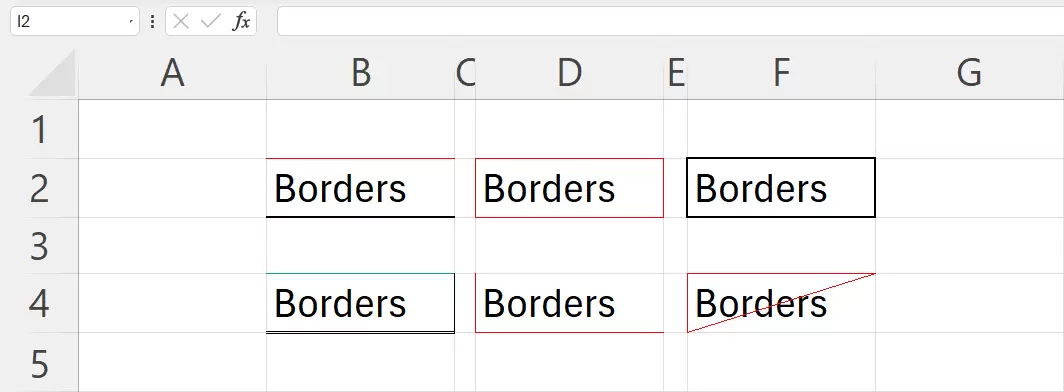
- Bottom/Top/Left/Right Border: It is applied to a specific edge of a cell or range.
- No Borders: To remove the applied borders from cells, use this option.
- All Borders: Applies lines around every cell in the selected range.
- Outside Border: Outside border applies a border to the outer edges of selected cells.
- Thick Outside Border: It adds a bold border around the outer edge of the selection.
- Bottom Double Border: It adds two horizontal lines at the bottom edge of a selected cell or range.
- Thick Bottom Border: This feature adds a bold, solid line along the bottom edge of a selected cell or range.
- Top and Bottom Border: It adds a singleline above and below the selected cell or range.
- Top and Thick Bottom Border: The Top and Thick Bottom Border format in Excel combines a regular thin top border and a thick bottom border for a selected cell or range.
- Top and Double Bottom Border: It places a Single thin line at the top, and a Double line at the bottom of a selected cell or row.
How to Add Borders in Excel (Step-by-Step)

To apply or create borders in Excel:
- Select the cell or range of cells you want to format.
- Go to the Home tab in the ribbon.
- In the Font group, click the Borders drop-down 🡳.
- Choose the desired border type from the list.
How to Customize Borders in Excel
To Customize borders in Excel:
- Select the cell or range you want to customize.
- Click the Borders drop-down 🡳, then click on More Borders at the bottom.
- In the Format Cells dialog box under the Border tab, you can:
- Choose line style: solid, dashed, dotted, double, etc.
- Pick line color.
- Apply borders to specific edges using the preview diagram.
Draw Border in Excel
- Draw Border is a feature that allows you to manually draw outside borders on selected cells using the mouse.
- Instead of selecting a range and choosing preset border styles. Draw Border provides a freehand way to apply borders, which gives you more flexibility and precision than the standard border tools.
- Draw Border lets you click and drag directly on the worksheet to apply lines to specific cell edges.
Draw Border Grid in Excel
- Draw Border Grid lets you manually draw full grid-style borders.
- It applies borders around and inside each cell in the area you drag across.
- Unlike Draw Border, which only draws on the specific edge you click, Draw Border Grid acts like a “paintbrush” for table formatting, letting you quickly create full border boxes around multiple cells.
What is Erase Border in Excel?
- Erase Border lets you manually remove individual border lines or remove all borders from cells by clicking or dragging your mouse; it is like using an eraser.
- It works in tandem with Excel’s Draw Border tools, offering a quick way to clean up or adjust borders without reformatting the entire worksheet.
Where to Find “Erase Border”
- Go to the Home tab.
- In the Font group, click the Borders drop-down 🡳.
- Select Erase Border from the bottom of the menu.
- Your mouse pointer will change to a small eraser icon.
What is Line Color and Style in Excel?
Line Color controls the color of the border you apply. Line Style determines the pattern or thickness of the border line.
Where to find Line Color and Style:
- In the Excel Ribbon,
- Go to the Home tab in the Font group,
- Click the Borders dropdown 🡳, and select More Borders.
- In the Format Cells dialog, you’ll see Line Color and Line Style settings side-by-side.
How to Remove Borders in Excel
Borders can also be removed by using the No Border option. To remove borders,
- Select the cell or range.
- Click the Borders drop-down 🡳.
- Choose No Border.
Alternatively, press Ctrl + 1 shortcut to open Format Cells,
- click on the Border tab,
- then manually remove the borders by selecting None from Presets.
Summary
- Borders are lines that can be applied to a cell’s top, bottom, left, right, or all sides.
- There are different types of Borders in Excel that can be applied to cells from the Home tab on the ribbon.
- There is also an option to Customize Borders in Excel using the More Borders option or through Format Cells.
- The Draw Border feature allows you to manually draw outside borders on selected cells using the mouse.
- Draw Border Grid lets you manually draw full grid-style borders.
- Erase Border lets you manually remove individual border lines or remove all borders from cells by clicking or dragging your mouse, like using an eraser.
- Line Color controls the color of the border you apply, whereas Line Style determines the pattern or thickness of the border line.
- Borders can also be removed by using the No Border option or by using the Format Painter.
To explore all our posts covering the fundamentals of Excel, please follow this link.